![Engagedly dark.png]](https://help.engagedly.com/hs-fs/hubfs/Engagedly%20dark.png?height=31&name=Engagedly%20dark.png)
Admins can configure the following settings and manage them:
Social Feed
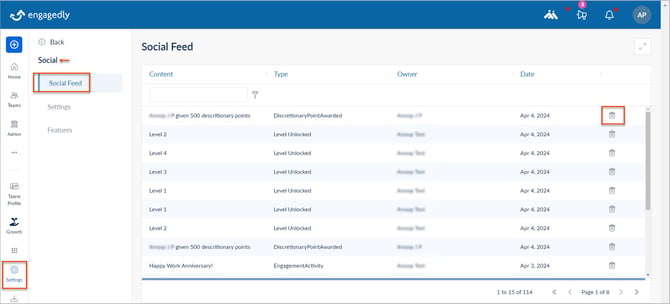
The social feed displays posts from all employees, allowing you to view the content, post type, employee name, and date of each post.
Navigate to Settings > Social > Social Feed.
You can delete any post from the social feed, ensuring that inappropriate, irrelevant, or potentially harmful posts are removed, fostering a positive and professional environment for all employees.
Click the Delete  Icon for any post to remove it from the social feed.
Settings
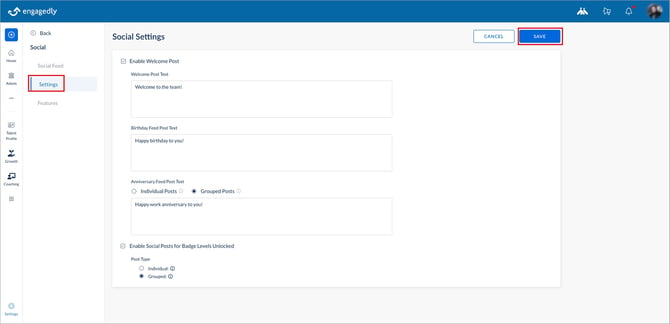
The settings allow you to customize how posts appear in the social feed for the following events:
Navigate to Settings > Social > Settings.
- Do as required:
- Select Enable Welcome Post to greet new employees when they join the organization.
- Select Birthday Feed Post Text to wish employees on their birthdays.
- Select Anniversary Feed Post Text to wish employees on their work anniversaries and select how posts are displayed:
-
- Individual Posts: Generates a separate post for each employee on their anniversary, using the placeholders below to pull that employee's specific data.
- Grouped Posts: Combines employees who share the same work anniversary date into a single post, using the placeholders below to reflect the shared date and tenure details.
Available placeholders
- @EmployeeName: Pulls the employee's name.
- @AnniversaryDate: Pulls the employee's work anniversary date.
- @AnniversaryYear: Pulls the employee's year of anniversary (i.e., which year they're celebrating).
- @Years: Pulls the number of years the employee has been with the organization.
Add the word "years" after the placeholder in your message.
Type placeholders exactly as shown above, including the "@" symbol. They are case-sensitive and the text field does not autocomplete them.
📒Notes:
- The @Years placeholder returns only the numeric value (for example, 5). To display "5 years", enter @Years years in the message.
-
You can personalize the Birthday Feed Post Text and Anniversary Feed Post Text using dynamic placeholders (for example,
@EmployeeName,@AnniversaryDate,@AnniversaryYear, and@Years). When you save the settings, these placeholders are automatically replaced with each employee's actual data in the published post.
-
Select Enable Social Posts for Badge Levels Unlocked: Share badge achievements in the feed:
- Individual Posts: Create a separate post for each employee.
- Grouped Posts: Combine employees with the same anniversary date into a single post.
2. After configuring the settings, click SAVE at the top right.
Features
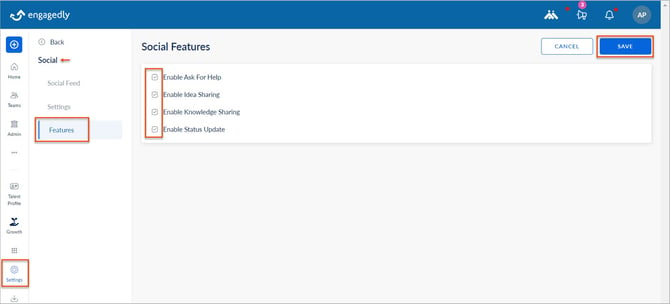
Enable or disable the following features for employees:
-
Enable Ask For Help
-
Enable Idea Sharing
-
Enable Knowledge Sharing
-
Enable Status Update
Navigate to Settings > Social > Features.
Select the options you want to enable for employees and click SAVE at the top right.