![Engagedly dark.png]](https://help.engagedly.com/hs-fs/hubfs/Engagedly%20dark.png?height=31&name=Engagedly%20dark.png)
Identify critical roles in your organization that do not yet have a succession pipeline assigned, so you can proactively address succession gaps and reduce risk.
You can identify such roles from multiple entry points:
Option 1: From the overview page
Navigate to Apps > Talent Mobility > Overview.
- Locate the Strategic Talent & Roles section.
- Review the Critical Roles card.
-
- Displays total number of critical roles.
- Highlights roles without assigned pipelines (for example, “5 critical roles don’t have any pipelines”).
3. Click Mark critical roles to review and take action.
Learn more in Actions in talent mobility overview.
Option 2: From the STAR page
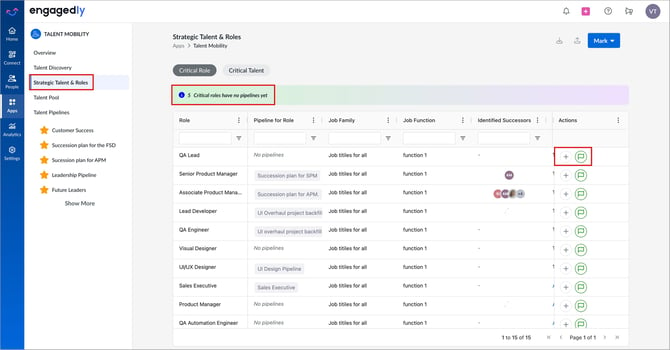
Navigate to Apps > Talent Mobility > Strategic Talent & Roles.
- Ensure the Critical Role tab is selected.
- Review the alert banner at the top of the page.
-
- Displays total count of critical roles without pipelines (for example, "5 Critical roles have no pipelines yet").
Option 3: From the STAR grid
Use filters to identify roles without pipelines:
Navigate to Apps > Talent Mobility > Strategic Talent & Roles.
- In the “Pipeline for Role” column, click the Filter icon.
- In the filter drop-down, change Contains to No pipelines.
The grid refreshes to display only critical roles without an assigned pipeline.
Visual indicators
- Pipeline for Role column displays “No pipelines” in italics when no pipeline is assigned.
- Identified Successors column shows a dash (-) when no successors exist.
- Roles showing both indicators represent the highest-risk succession gaps.
Next actions
- Click the Plus
 icon in the “Actions” column to create a succession pipeline.
 - Use the Green Flag
 icon to remove critical status if the role no longer requires prioritization.