![Engagedly dark.png]](https://help.engagedly.com/hs-fs/hubfs/Engagedly%20dark.png?height=31&name=Engagedly%20dark.png)
After adding employees to the talent pool, admins can perform various actions to support succession planning, employee development, and talent readiness.
These actions help identify successors, track critical talent, assign development opportunities, and move employees into pipelines when required.
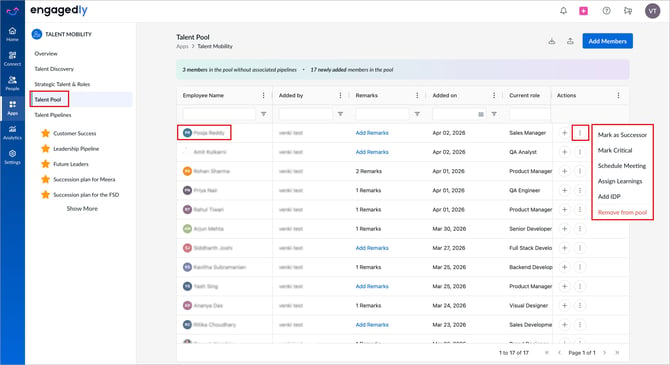
Navigate to Apps > Talent Mobility > Talent Pool.
- Locate the member in the grid.
Add members to a pipeline
- In the “Actions” column, click the Plus
 icon to add the member to a pipeline.
Access additional actions
- In the “Actions” column, click the Overflow
 Menu on the right to view additional actions.
 - Perform the following as required:
-
- Mark as Successor: Designate the member as a potential successor.
-
- Mark Critical: Flag the member as critical for succession planning.
-
- Schedule Meeting: Set up a meeting with the employee.
-
- Assign Learnings: Allocate learning programs or courses.
-
- Add IDP: Assign an Individual Development Plan (IDP).
-
- Remove from pool: Remove the member from the talent pool.
Refer to the additional actions section for detailed procedures.
Additional actions
Mark as successor
- On the employee card, click the Bookmark
 icon.
icon. - Select whether you are assigning an employee as a successor for a Talent or a Role.
- Search for and select the relevant talent or role.
- Click Mark as Successor to confirm.
Mark critical
- On the employee card, click the Grey Flag
 icon to mark the employee critical.
 - (Optional) Enter remarks to explain why the role is critical.
- Click Mark Critical to confirm.
Unmark critical
- On the employee card, click the Green Flag
 icon to mark the employee critical.
 - Click Unmark Critical to confirm.
Schedule a meeting
- On the employee card, click the Schedule
 icon to schedule a meeting with the employee.
 - Enter the meeting details and click Save. Learn more in Create a meeting.
Assign learnings
- On the employee card, click the Graduation Cap
 icon to assign learnings.
 - Search for courses or learning paths.
- Hover over the courses and click Assign.
Add IDPs
- On the employee card, click the Growth
 icon to add IDP to the employee.
 - Enter the IDP details and click Save. Learn more in Create and manage IDPs.
Remove employees from the pool
It is available after adding to a pool.
- On the employee card, click Remove from Pool if the employee is already in the pool.
- Click Remove to confirm.