![Engagedly dark.png]](https://help.engagedly.com/hs-fs/hubfs/Engagedly%20dark.png?height=31&name=Engagedly%20dark.png)
After sharing the survey, admins and authors can nudge respondents who have not yet submitted their responses.
Nudge respondents
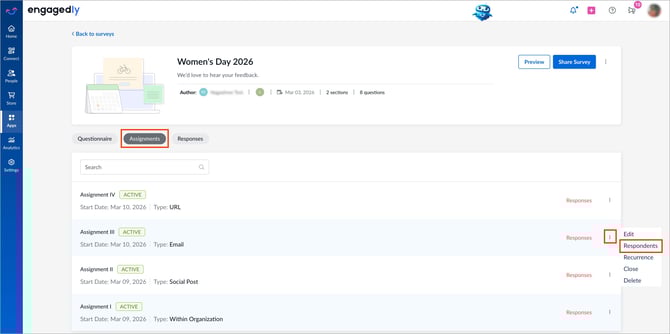
Navigate to Apps > Surveys.
- Scroll down to All Surveys.
- Open a survey where you want to nudge respondents.
- Go to the Assignments tab.
- Click the Overflow
 Menu on an assignment.
 - Select Respondents.
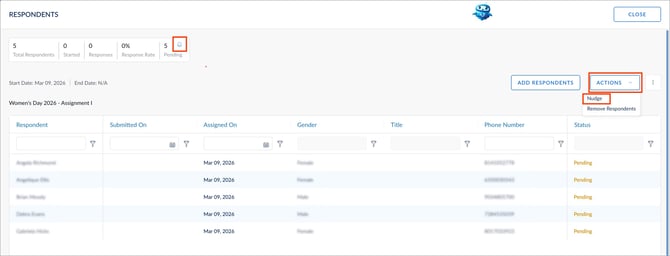
6. Open the ACTIONS drop-down and select Nudge.
7. Do one of the following actions:
-
- Nudge selected respondents: Select the respondents manually, click NUDGE, update the nudge message if required, and click NUDGE to confirm.
- Nudge all respondents: Click the Bell
 icon at the top to nudge all respondents in bulk, update the nudge message if required, and click NUDGE to confirm.
After nudging, respondents receive notifications prompting them to submit their responses. Once they submit the survey, you can view their responses. For more information, refer to View and export survey responses.