![Engagedly dark.png]](https://help.engagedly.com/hs-fs/hubfs/Engagedly%20dark.png?height=31&name=Engagedly%20dark.png)
After creating a survey, authors can share it with internal respondents within the organization or with external respondents. Surveys are shared through assignments.
📒Note: You can share only the general survey with external respondents.
⚠️Warning: Adding respondents after sharing the survey may affect previously collected responses.
Assignment types
Select the assignment type based on how you want to distribute the survey.
- Share with employees: Assign the survey to selected employees or everyone in the organization.
- Post on social: Publish the survey as a post in the Social app.
- Invite through email: Send the survey to internal or external respondents through email.
- Generate a public URL: Create a public link and a downloadable QR code to share the survey with anyone.
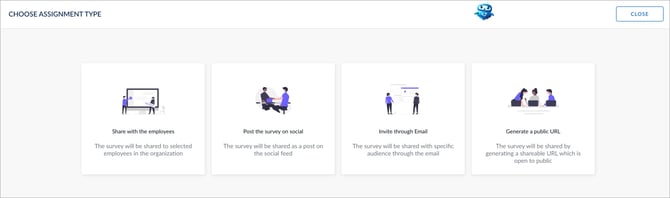
📒Note: External respondents are supported only for general surveys. Therefore, “Invite through Email” and “Generate a public URL” are not available for engagement surveys.
Share a survey
Navigate to Apps > Surveys.
- Scroll down to All Surveys.
- Open the survey you want to share.
- Click Share Survey at the top right.
- Select the required assignment type.
- Complete the steps based on the selected assignment type:
Share with employees
Use this assignment type to distribute the survey internally.
- Select Share with the employees.
- Enter the assignment title.
- Select the start date and end date.
- (Optional) Enable the following options:
-
- Award points on survey completion, and enter the points value.
- Get notified when respondents submit the survey.
- Send reminder notification.
5. (Optional) Enter the approximate time required to complete the survey.
6. (Optional) Update the email message.
7. Click CREATE to save the settings.
8. Select specific employees or all employees, then click ASSIGN.
📒Notes:
- If a survey is non-anonymous, you get notified when respondents submit it.
- If the end date is not set, the assignment remains active forever.
- The end date is required to send reminder notifications to respondents.
Post on social
Share the survey as a post on the social feed with internal respondents.
- Select Post the survey on social.
- Enter the assignment title.
- Select the start date and end date.
- (Optional) Enable Award points on survey completion, and enter the points value.
- (Optional) Enter the approximate time required to complete the survey.
- Click CREATE to save the settings.
- Select the post type. By default, “Share Status” is selected.
- Search and select respondents in the “Share With” field.
- (Optional) Add tags to categorize the post, and click POST.
📒Note: The survey link is autogenerated in the post. Respondents are added automatically when they click the link.
Invite through email
Send the survey to internal or external respondents.
- Select Invite through Email.
- Enter the assignment title.
- Select the start date and end date.
- (Optional) Enable the following options:
-
- Get notified when respondents submit the survey.
-
- Send reminder notification.
5. (Optional) Enter the approximate time required to complete the survey.
6. (Optional) Enable Allow respondents to submit multiple responses.
7. Update the email subject and body if required.
8. Click CREATE to save the settings.
9. Add respondents email IDs using one of the following methods:
-
- Add manually: Enter the email ID and press Enter on your keyboard.
- Add in bulk: Click the Download icon to download the template, update the fields, save the file, and click UPLOAD.
10. Click ASSIGN.
📒Notes:
-
The assignment link is automatically attached at the end of the email body.
- When multiple responses are allowed, respondents can submit more than one response for the same survey, even after their initial submission. Admins can review all responses in the “Individual Responses” tab.
Generate a public URL
Share the survey using a public link or QR code with internal or external respondents.
- Select Generate a public URL.
- Enter the assignment title.
- Select the start date and end date.
- (Optional) Enter the approximate time required to complete the survey.
- (Optional) Enable Allow respondents to submit multiple responses.
- Click CREATE to save the settings.
📒Notes:
- When multiple responses are allowed, respondents can submit more than one response for the same survey, even after their initial submission. Admins can review all responses in the “Individual Responses” tab.
- You cannot manually add respondents in the "Generate a public URL" assignment type.
- Respondents are added automatically when they open the link or scan the QR code.
- Copy the public URL or download the QR code to share the survey. The link becomes active only after the assignment is created.
- When you share the survey with a public link or QR code, respondents appear as Respondent 1, Respondent 2, and subsequent numbers, irrespective of whether the survey is anonymous. Their personal details are not captured.
ℹ️Additional information:
- You cannot add, edit, reorder, or remove options in a question after sharing the survey.
- After sharing the survey, you cannot:
- Delete sections
- Delete questions
- Change the question type
- You can only hide questions, which may affect the collected responses.
- Managers can view the Questionnaire, Assignments, and Responses tabs only if at least one of their direct or indirect reports is assigned to the survey. If none of their reports is assigned, the system hides these tabs and the Preview button. Managers can still view the survey details, including the title, description, author, date, anonymity badge, and question count.
After sharing the survey, you can:
- View the “ACTIVE” status, start date, end date (if set), and assignment type on each assignment in the “Assignments” tab.
- Manage it by editing, setting recurrence, closing, opening, or deleting. Learn more in Manage assignments in a survey.
- Manage respondents by adding and removing them. Learn more in Manage respondents in a survey.