![Engagedly dark.png]](https://help.engagedly.com/hs-fs/hubfs/Engagedly%20dark.png?height=31&name=Engagedly%20dark.png)
The overview page is the default landing page for Butterfly EI. It provides a consolidated view of engagement data from active survey types, such as pulse and yearly surveys.
The page includes summary widgets that help managers and admins review engagement trends and identify areas that require attention.
Each widget displays the latest data with the timestamp to indicate the freshness of the data.
The page summarizes survey responses and participation across four panels: Mood Score, Topics, Spotlight, and Highlights.
Navigate to Apps > Butterfly EI > Overview.
At the top of the page:
- View the date and time when the data was last refreshed.
- Click Download report at the top right to download the current report as a PDF.
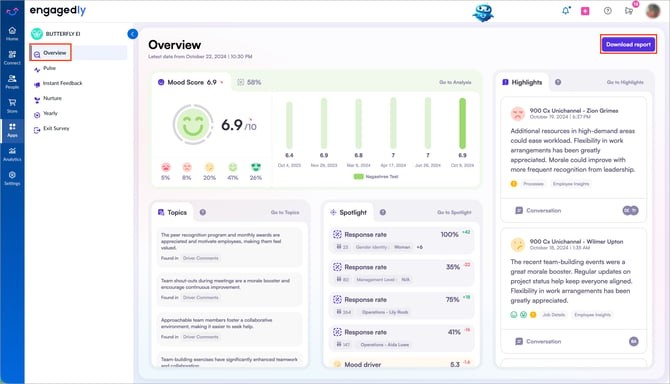
Mood score
Displays the average sentiment score and indicates whether the score increased or decreased since the previous cycle.
The panel also shows:
- The percentage of responses for each of the five sentiment levels.
- A trend chart that shows the mood score across previous survey cycles.
Click Go to Analysis to view the detailed sentiment report and apply filters such as department and location.
Topics
The “Topics” panel summarizes recurring themes identified in employees' comments. Each theme includes a "Found in" tag that identifies the survey question associated with the theme.
Click Go to Topics to view the complete list of themes.
Spotlight
The “Spotlight” panel highlights metrics for different segments, such as demographic groups, management levels, and manager's teams. It identifies metrics that differ significantly from the overall company average, such as mood scores and drivers.
For each segment, you can view:
- The metric
- Number of people in the segment
- Change in the metric since the previous period
Click Go to Spotlight to view all segments.
Highlights
The “Highlight” panel shows individual employee comments that the system identifies for further review. Each comment includes a category and, when available, the existing conversation thread.
- Click Go to Highlights to view the complete list of flagged comments.
- Click Conversation to open the conversation thread.
- Enter your message and click the Send
 icon to reply.
 - To add a draft for yourself, click Private note in the conversation thread, enter the message, and click the Send icon.
📒Notes:
- After sending messages, you cannot edit or delete them.
- Only you can view a private note.
ℹ️Additional information:
- Topics and highlights use AI-generated summaries of employee comments. Review the original comments before taking action based on these insights.
- For spotlight, response rates for small segments can vary significantly based on a small number of responses.