![Engagedly dark.png]](https://help.engagedly.com/hs-fs/hubfs/Engagedly%20dark.png?height=31&name=Engagedly%20dark.png)
What happens after you mark a role as critical
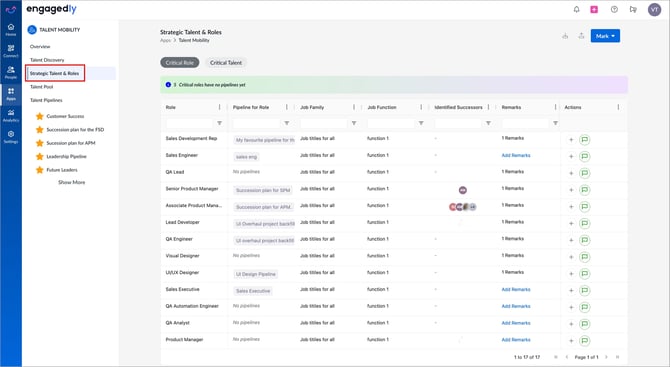
After a role is flagged as critical, it appears in the “Critical Role” tab on the STAR page.
How to view and manage
Navigate to Apps > Talent Mobility > Strategic Talent & Roles.
-
Open the Critical Role tab.
-
Review grid details: role name, pipeline status, job family, job function, identified successors, remarks, marked by, and marked on.
-
On the right, use the “Actions” column to:
-
-
Create a pipeline for succession planning.
-
Unmark critical to remove the flag.
-
4. Click the Download  icon at the top right to export the grid data.
What happens after you mark an employee as critical
When an employee is flagged, they appear in the “Critical Talent” tab with a critical indicator on their profile.
How to view and manage
-
Open to the Critical Talent tab on the STAR page.
-
Review employee details: name, role, pipeline, identified successors, marked successor, remarks, marked by, and marked on.
-
On the right, use the “Actions” column to:
-
-
Add to pipeline (unique to talent tab).
-
Create a pipeline for succession planning.
-
Unmark critical to remove the flag.
-
4. Click the Download icon at the top right to export the grid data.
What you can do next
After marking roles or employees as critical, strengthen planning by:
-
Building pipelines directly from the STAR page.
-
Adding talent to existing pipelines.
-
Unmarking items if priorities change.
-
Using the STAR dashboard as your central hub for succession planning and risk reduction.