![Engagedly dark.png]](https://help.engagedly.com/hs-fs/hubfs/Engagedly%20dark.png?height=31&name=Engagedly%20dark.png)
The goal creator, assigner, or owner can add the goal to a meeting so you can discuss its progress with stakeholders or team members.
📒Note: The “Add to Meetings” option is available only if your organization has an active subscription to Engagedly’s Meetings module.
⚠️Warning: You cannot create meetings unless your organization integrates Engagedly with Google or Microsoft Calendar. Contact our support team to configure the calendar integration.
Navigate to Apps > Goals.
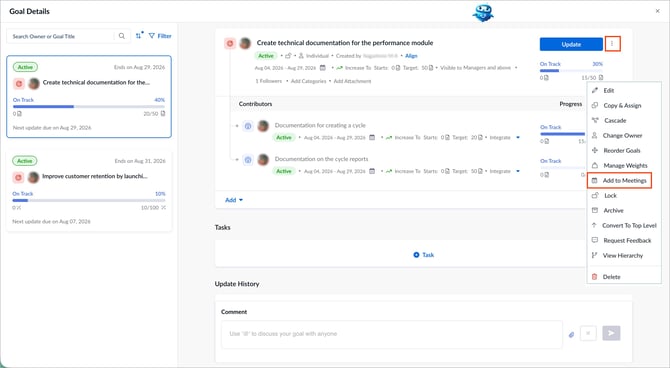
- Open the goal you want to add to a meeting.
- Click the Overflow
 Menu at the top right of a goal.
 - Select Add to Meetings.
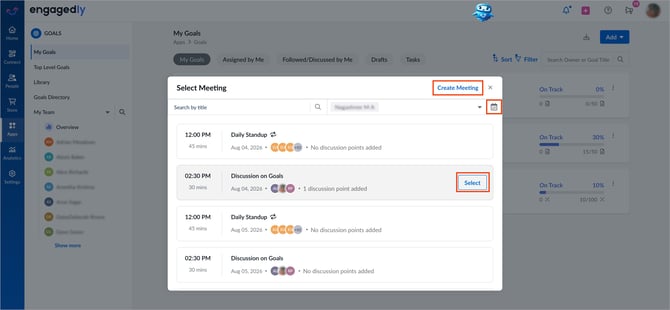
- Add the goal to an existing meeting:
-
- Hover over the meeting.
- Click Select and click Add.
- Create a new meeting:
-
- Click Create Meeting at the top right.
- Complete the meeting details and click Save. For more information, refer to Create a meeting.
- (Optional) Click the Calendar
.png?width=20&height=20&name=calendar%20(2).png) icon to filter meetings by date range.
icon to filter meetings by date range.
📒Note: When you add a goal to a meeting, the goal is added as a discussion point that is visible to all meeting participants.