![Engagedly dark.png]](https://help.engagedly.com/hs-fs/hubfs/Engagedly%20dark.png?height=31&name=Engagedly%20dark.png)
After adding a session to a training, add attendees to it and manage them by changing their status and unregistering them. This helps authors ensure the right learners participate in instructor-led training sessions by allowing them to add attendees, confirm attendance, track participation, and manage learner registration efficiently.
Attendees are learners added to a training session.
ℹ️Additional information: Engagedly supports only one active registration per unit. If you want learners to register for multiple instructor-led training (ILT) sessions, create each session in a separate unit. If multiple sessions are added to the same unit, learners can register for only one session. After a learner registers for a session, the remaining sessions in that unit become unavailable. Sessions whose scheduled date has passed are also unavailable for registration.
For more information, refer to the Multiple ILT sessions, Recommended ILT sessions, and Adding ILTs to a unit.
Add an attendee
You can add attendees only to courses that you authored.
Navigate to Apps > Learning > Author.
- Go to the Authored by you tab.
- Open a course and go to the Insights tab.
- Scroll down to the “Instructor Led Training Metrics” section.
- Hover over a session and click View.
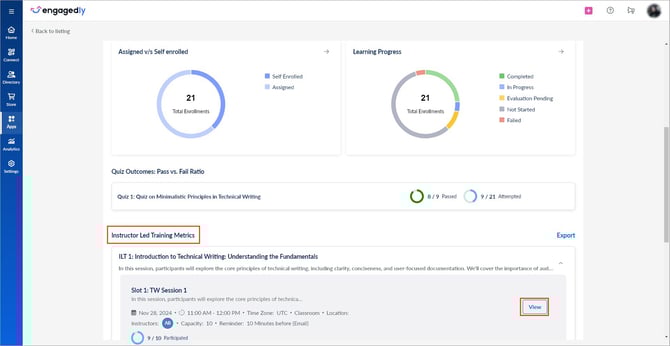
5. Click Add Learners at the top right, select all or specific learners, and then click Save.
ℹ️Additional information:
- You can add only learners who are already added to that course.
- Adding learners to a session automatically registers them; they do not need to register separately.
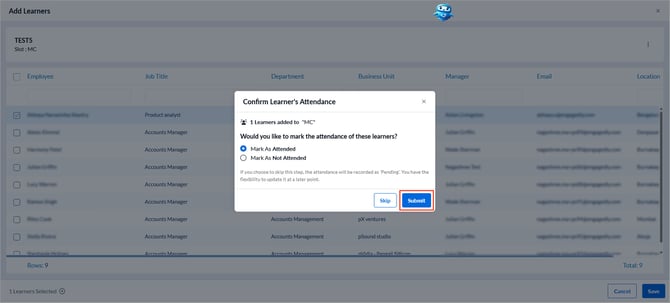
- While adding learners, you can confirm their attendance:
- Enable Mark As Attended or Mark As Not Attended and click Submit.
- You can also skip this step and update attendance later.
Manage an attendee
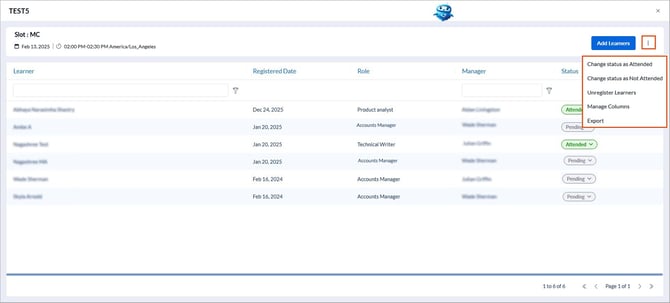
After adding attendees, authors can update their status or unregister them as required.
By default, an attendee’s status remains “Pending”, even after they attend the training. Only the author or co-authors can update the status. Attendees cannot change their own status.
Change attendee status
For individual attendee
- In the “Status” column, select Attended or Not Attended from the “Pending” drop-down.
- Click Confirm.
For multiple attendees’
- Click the Overflow
 Menu at the top right.
 - Select Change status as Attended or Change status as Not Attended.
- Select the learners and click Attended or Not Attended, based on the option selected in the previous step.
- Click Confirm.
Unregister learners’
Unregister learners from a training session at any time.
- Click the Overflow
 Menu at the top right.
 - Select Unregister Learners.
- Select all or specific learners.
- Click Unregister and then click Confirm.
Export learners’ data
Export learners’ data for reference.
- Click the Overflow Menu at the top right and select Export.