![Engagedly dark.png]](https://help.engagedly.com/hs-fs/hubfs/Engagedly%20dark.png?height=31&name=Engagedly%20dark.png)
Competencies help assess employee capabilities, ensure role alignment, guide development, and support performance evaluation.
Add a competency
You can add competencies with or without assigning them to a category.
Navigate to Settings > Talent Frameworks.
If you have an active subscription to Engagedly's Growth app, you can also access Talent Frameworks from Apps > Growth > Settings.
- Go to Competency Framework and ensure it is enabled.
- In the “Competency library” section, click Manage.
Option 1: Without creating a category
Use this option to quickly add skills when categories are not yet defined.
- Open the Add drop-down at the top right and select Competency.
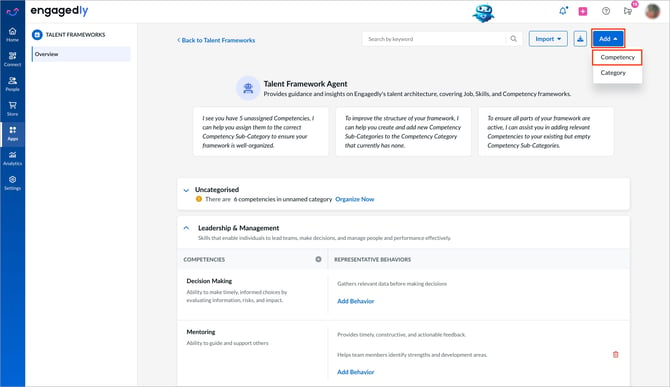
2. Enter a title and description.
3. (Optional) Select a category.
4. Click Add.
Option 2: After creating a category
Use this option when you already have structured competencies.
- Under a category, go to the “COMPETENCIES” section.
- Click the Plus
 icon.
icon.
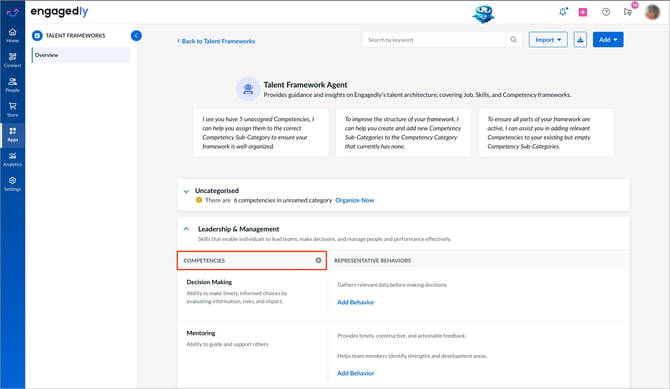
3. Enter a title and description and click Add to save it.
After you click “Manage”, the system opens the competency framework page with default prompts.
💡Tip: Select a prompt to use Engagedly’s AI assistant, Marissa, to help you categorize competencies.
📒Note: Competencies created without a category appear under “Uncategorized”. Reorganize them at any time.
Manage a competency
- Click a competency to edit its title or description, and click the Tick
 icon to save.
 - Hover over a competency and click the Overflow
 Menu on the right.
- Select Move, select the competency category, and click Move to relocate the competency.
- Select Delete and click Delete again to remove the competency.
After adding competencies, define representative behaviors for each competency level. Refer to Define representative behaviors.