![Engagedly dark.png]](https://help.engagedly.com/hs-fs/hubfs/Engagedly%20dark.png?height=31&name=Engagedly%20dark.png)
Company badges are designed to recognize employee achievements and drive the organization’s core values and objectives. They help celebrate milestones, promote desired behaviors, and foster a culture of recognition aligned with your organizational goals.
Admins can add and manage company badges as required.
Add company badge
You can add badges and assign points to them, or create a badge without points.
Navigate to Settings > Rewards > Company Badges.
- Click ADD at the top right.
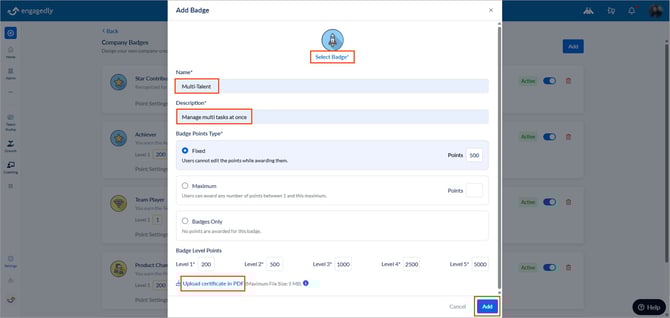
- Click Select Badge to choose an icon from the badge library.
- Type the badge name and description.
- In Badge Points Type, select one of the following:
-
- A point type: Fixed or Maximum
- Badge Only (if you do not want to assign points)
5. If you selected a point type in the previous step:
-
-
Fixed: Enter the fixed points (non-editable when awarding).
-
Maximum: Enter the maximum points (editable when awarding, up to this limit).
-
6. Enter the required points for each badge level.
7. Enter the required points for each badge level.
8. (Optional) Click Upload certificate in PDF and upload the certificate template with the appropriate employee tags.
9. Click ADD.
ℹ️Additional information: When you award a company badge, the system automatically generates a certificate (PDF), fills in the employee’s name and award date, and notifies the recipient by email.
Before uploading, ensure the certificate displays the correct details. Include the following tags in the certificate template:
- kb-article-module-5: Displays the employee’s name
- : Displays the award date
The system automatically replaces these tags with the recipient’s information.
Manage company badge
After adding company badges, you can edit, delete, or deactivate them if required.
Click on any of the following fields to make changes:
- Badge name
- Description
- Level points
- Point settings
- Points
- Replace or remove the certificate
After making the necessary changes, click the Tick  Icon to save the changes.
On the right side of a badge,
-
- Click the Delete
 Icon to remove it.
 - Toggle the button to deactivate it.
- Click the Delete
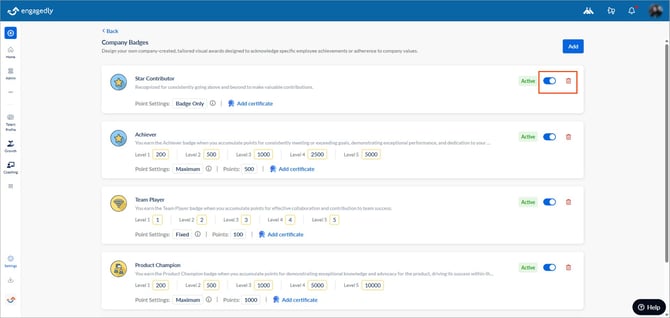
After deactivating, toggle the button again to reactivate it if required.
You can activate or deactivate badges at any time.
Note: Employees cannot view deactivated badges.