![Engagedly dark.png]](https://help.engagedly.com/hs-fs/hubfs/Engagedly%20dark.png?height=31&name=Engagedly%20dark.png)
Employees can follow a goal when they have visibility into it, and they can add others as followers when they have visibility into the goal.
Following a goal allows you:
- Stay informed about its progress, updates, and status changes.
- Monitor alignment with team or organizational objectives.
- Stay engaged with key initiatives.
- Receive notifications on updates or changes.
📒Notes:
- The goal creator, assigner, or owner cannot follow a goal, as they are already directly involved in it.
- By default, an employee’s goals are visible to their reporting hierarchy (manager, secondary manager, and skip-level manager). However, admins can customize visibility settings.
- If employees are permitted to manage their goal visibility, their preferences override the admin settings.
- Clear any applied filters before leaving the page. Otherwise, the same filtered results appear when you return.
Navigate to Apps > Goals > Goals Directory.
- Select an option, Organization, Department, or Business Unit, from the drop-down.
- If you select "Department" or "Business Unit", then select specific values.
- Click a goal to open the "Goal Details" page.
The goal cards appear on the left, and the selected goal details appear on the right.
4. Click Add Followers, search for employees, and click Save.
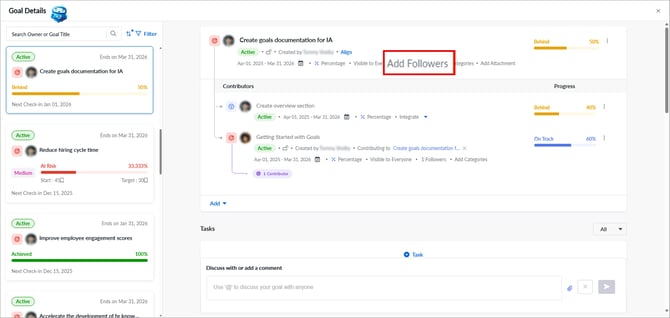
📒Note: If admins do not enable the goal directory for your organization, you cannot view others’ goals even if visibility is given.
Unfollow a goal
After following a goal, unfollow it at any time.
- Click Followers.
- Click the Cancel
 icon next to the follower’s name and then click Remove.
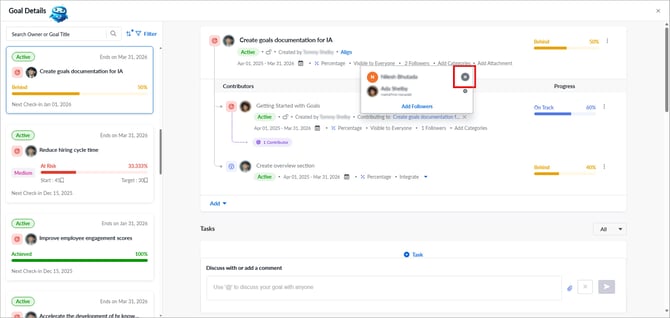
📒Note: If you unfollow a goal, the goal owner is not notified.