![Engagedly dark.png]](https://help.engagedly.com/hs-fs/hubfs/Engagedly%20dark.png?height=31&name=Engagedly%20dark.png)
Organizing employees into structured groups helps streamline administration, improve reporting, and manage permissions efficiently. Engagedly allows admins to categorize employees using departments, business units, employee types, and locations.
These groups help you:
- Improve collaboration and accountability
- Simplify access control and permissions
- Enable accurate reporting
- Manage region-specific or function-specific configurations
Add and manage departments
Group employees based on their operational areas to facilitate collaboration, streamline workflows, and allocate resources efficiently.
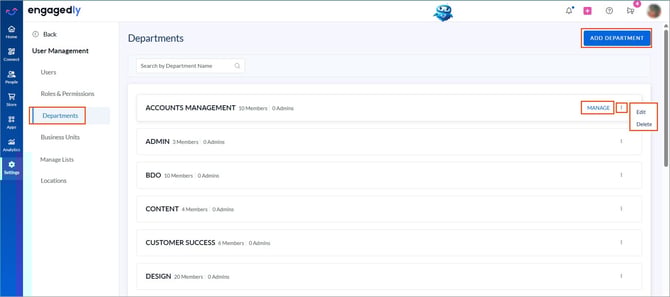
Navigate to Settings > User Management > Departments.
The system displays a list of departments, their members, and assigned department admins. Department admins can manage their respective departments.
Add a department and admins
- Click ADD DEPARTMENT at the top right.
- Enter the department name.
- Search and select employees to assign as department admins.
- Click ADD.
Manage departments and admins
- Click the Overflow
 Menu next to a department name for additional actions.
-
- Edit: Edit the department name, and add or remove admins.
- Delete: Remove the department.
-
- Add employees to the department.
- Edit employee profiles.
- Export employee data from the department.
- Manage individual employees (such as impersonation, assigning permissions, and other actions)
Add and manage business units
Group employees by business functions to streamline reporting and permissions management.
Navigate to Settings > User Management > Business Units.
Add and manage employee types
Categorize employees by employment type, such as full-time, intern, or contractor.
Navigate to Settings > User Management > Employee Types.
Add and manage locations
Group employees by geographical location to support region-specific settings and reporting.
Navigate to Settings > User Management > Locations.
Departments, Business Units, Employee Types, and Locations follow the same workflow for adding, editing, deleting, managing, and assigning admins.