![Engagedly dark.png]](https://help.engagedly.com/hs-fs/hubfs/Engagedly%20dark.png?height=31&name=Engagedly%20dark.png)
Team Pulse helps admins gather structured employee feedback through weekly questions. Adding and managing questions ensures the pulse reflects organizational priorities and team needs.
Access based on role
- Admins can add and manage questions under “Team Questions” and “Private Questions”.
- Managers (if permission is enabled) can add and manage questions under “Manager Questions” only.
📒Note: Managers do not have access to “Team Questions” or “Private Questions”.
Navigation
Admins: Navigate to Apps > Team Pulse > Settings > Questions.
Managers: Navigate to Apps > Team Pulse > Overview > Manage Questions.
Add a question
- Select the appropriate tab (applicable to admins only):
-
- Team Questions: Admins and managers view responses.
- Private Questions: Only admins view responses.
- Manager Questions: Managers add and manage these questions.
-
- Create New Question
- Add from Library
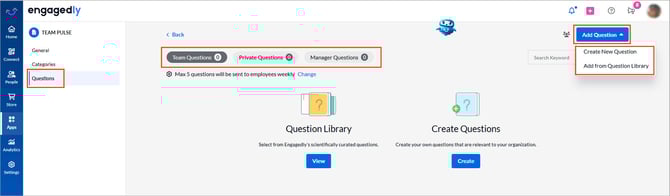
📒Note: This screenshot reflects the admin view.
Option 1: Create a new question
Use this option to design custom questions tailored to your organization.
- Click Add Question > Create New Question.
The “Create Question” panel opens. - Select the question type.
- Based on your selection, do one of the following:
| Question type | Required configuration |
| Rating scale |
Select the rating type: Emoji Rating, 5-Star Rating, or Custom Rating. Enter the question text. |
| MCQ |
Select either Single Choice or Multiple Choice. Enter the question text and add answer options. |
| Open ended | Enter the question text. |
4. Enter the question text.
5. Configure the following settings:
-
- Question category
- Select an audience: “My Team”, “My Secondary Team” or “My Entire Team” (applicable only to managers).
- Frequency (Ask once or recurring weekly)
- Start and end dates
- Response visibility: Enable Response visible only to admin (available to admins only).
If you enable this option, you can also enable Collect responses anonymously.
6. Click Save.
The system adds the question to the selected question pool.
Option 2: Add questions from the library
- Click Add Question > Add from Question Library.
The “Question Library” panel opens.
2. Select the required library:-
- Org Library: Contains questions created by the admin.
- Engagedly Library: Contains pre-built, recommended questions.
3. Browse or search for questions.
4. Select the checkbox next to the questions you want to add.
5. Click Add Questions.
The system adds the selected questions to the chosen question pool.
📒Notes:
- The system sends weekly questions based on the maximum question limit configured in settings.
- Team Pulse automatically saves added questions to the “Org Library” for future use.
- If the number of available questions exceeds the weekly limit configured by admins, the system automatically randomizes and selects questions each week. For more details, refer to How does question randomization work in Team Pulse?.
Question randomization
If the number of active questions exceeds the configured weekly question limit, the system automatically randomizes the questionnaire to distribute questions across pulse cycles. The system selects questions from the pool while respecting the configured frequency and active dates.
For more information about question randomization, refer to How does question randomization work in Team Pulse?.
Manage a question
After adding questions to team pulse, manage them from the question pool as required.
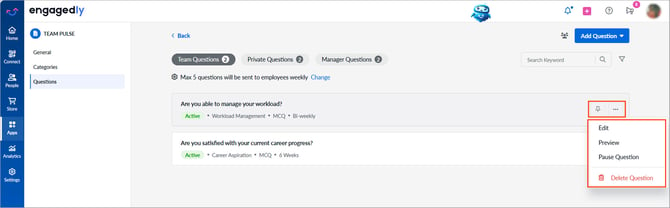
Hover over a question and select one of the following options:
Pin or unpin a question
- Click the Pin
 icon to pin a question to the top of the question pool for quick access.
 - Only admins can pin questions under “Team Questions” and “Private Questions”.
- To unpin a question, hover over the pinned question and click the Pin
 icon again.
More actions
- Click the Ellipsis
 icon and select the required action:
- Edit: Modify the question and its settings
- Preview: View the question details.
- Pause Question: Temporarily stop sending the question in upcoming pulse cycles.
- Delete Question: Remove the question from the current pulse.
ℹ️Additional information:
- Pinned questions skip randomization and are sent whenever the configured frequency applies.
- If you change questions after the start date, the changes apply only to upcoming pulse cycles.
- Paused questions do not appear in upcoming pulse cycles. Resume them at any time.
- After deletion, add the same question again from the question library if required.