![Engagedly dark.png]](https://help.engagedly.com/hs-fs/hubfs/Engagedly%20dark.png?height=31&name=Engagedly%20dark.png)
After publishing a learning, authors can add rules to automatically assign or unassign it. These smart assignments use employee details or profile updates to ensure learners receive relevant content based on their role, department, location, job title, or other attributes.
📒Note: Admins or employees with learning assignment permissions must configure the automation workflow before adding rules to a learning.
Add a rule
You can add rules to a learning to automate assignment or unassignment.
Navigate to Apps > Learning > Author.
- Go to the Authored by you tab and open a course.
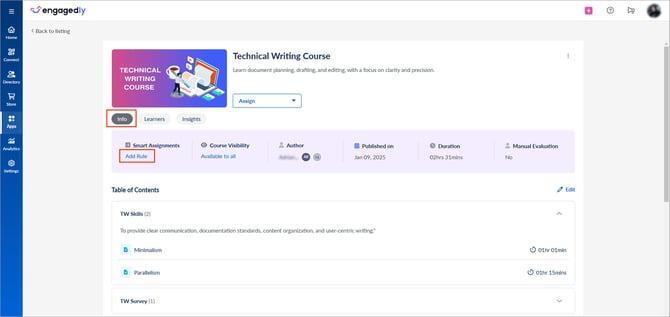
- In the “Info” tab, click Add Rule in the “Smart Assignments” section.
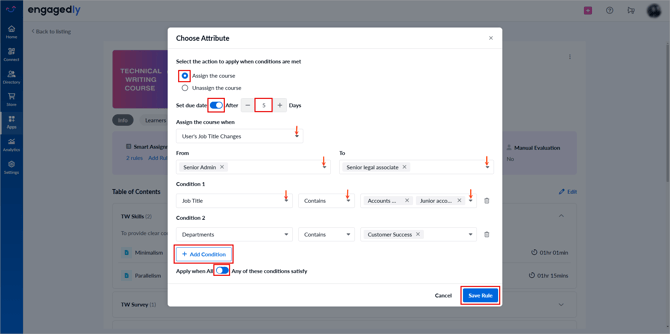
- Assign the course.
- Toggle the option to set a due date and enter the number of days.
- Toggle the Mandatory option to make the course mandatory.
- Unassign the course:
- (Optional) Enable Do not unassign the course if the status is completed.
- User added: Assigns or unassigns the course when a new user is added to the system.
- User updated: Assigns or unassigns the course when user details, such as role, job title, and location are updated.
- User added or updated: Assigns or unassigns the course when a new user is added or their profile is updated.
- User’s department changes: Assigns or unassigns the course when a user’s department changes.
- User’s business unit changes: Assigns or unassigns the course when a user’s business unit changes.
- User’s location changes: Assigns or unassigns the course when a user’s location changes.
- User’s job title changes: Assigns or unassigns the course when a user’s job title changes.
5. If applicable, specify values in the “From” and “To” fields to track changes.
6. Click + Add Condition, select an attribute, and select an operator.You can add multiple conditions within a rule, such as job title, department, business unit, location, employee level, or custom fields.
7. Toggle the option to select how conditions apply:- All: The trigger must meet all conditions.
- Any: The trigger must meet at least one condition.
📒Note: This option appears only when you add more than one condition.
8. Click Save Rule.
You can add multiple rules to a learning. The learning is assigned or unassigned when any rule’s conditions are met.
Manage a rule
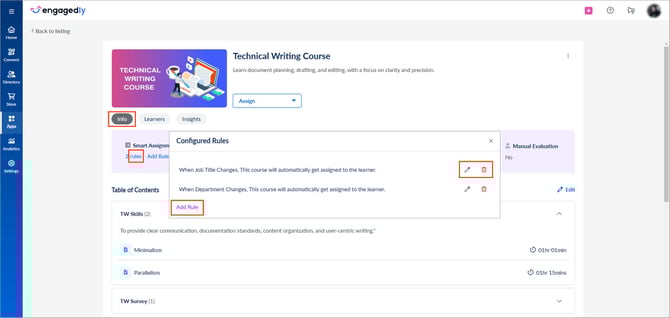
After adding rules, edit, delete, or add a new rule at any time.
- In the “Info” tab, click rules in the “Smart Assignments” section.
- Click the Pen
 icon to edit, the Delete
  icon to remove a rule, or click Add Rule to add a new rule.