![Engagedly dark.png]](https://help.engagedly.com/hs-fs/hubfs/Engagedly%20dark.png?height=31&name=Engagedly%20dark.png)
After creating a learning path, authors can add sections to organize content and add courses within each section. Sections help group related topics and provide a clear, structured learning experience.
After adding sections and courses, you can preview the learning path.
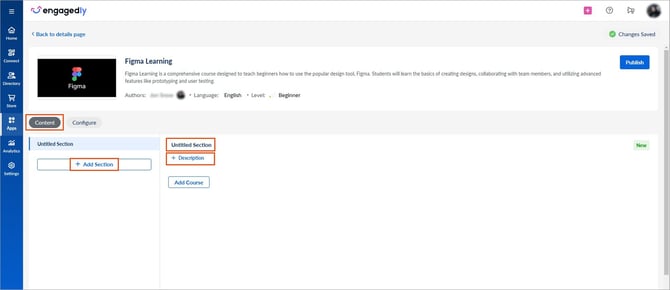
Add a section
After creating a learning path, you are redirected to the learning path edit page to add sections.
If you prefer to add them later, follow these steps. You can add sections and courses only to learning paths that you authored.
Navigate to Apps > Learning > Author.
- Go to the Authored by you tab and open a learning path.
- In the “Content” tab:
- Click Untitled Section, enter the section name, and click the Tick
 icon to save it.
 - Click Description, enter it, and click the Tick
 icon to save it.
 - Click Add Section to add another section.
Add multiple sections to a learning path to group-related topics, providing a clear structure and seamless learning experience.
Add courses
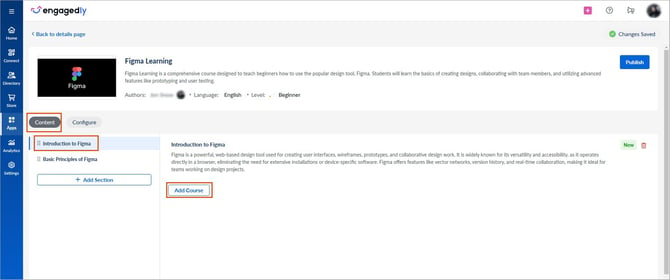
After adding a section, add one or more courses to it. You can add courses authored by you or others, or published by others.
After adding a section, you remain on the learning edit page to add courses.
You can also perform the following steps to add them.
- Select a section from the left panel and click Add Course.
When adding courses, you can filter and search using the following criteria:
- Library status
- Skills
- Competencies
- Tags
- Language
- Duration
- Rating
- Provider
- Certification
2. Select the courses and click Add Courses at the top right.
The courses are added successfully within a section.
Manage a section and a course
After adding a section and a course, manage them if required.
- In the “Content” tab, select a section from the left panel.
- Click the section name and description to edit it, and click the Tick icon to save.
- Click the Delete
 icon next to the description to remove the section.
 - Drag the Six Dot
 icon on the left to rearrange sections and courses within it.
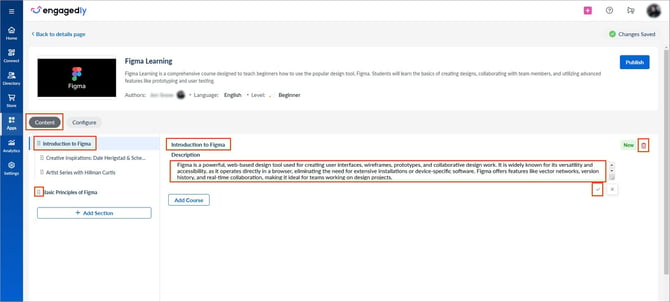
The changes are auto-saved.
📒Note: Deleting the section deletes all courses within it.
After adding sections and courses, publish the learning path. Publishing enables you to push the learning path to the library and control its visibility so it reaches the intended audience. Learn more in Publish a learning path.