![Engagedly dark.png]](https://help.engagedly.com/hs-fs/hubfs/Engagedly%20dark.png?height=31&name=Engagedly%20dark.png)
Employees, managers, and admins can add sections to discussion points to structure topics, keep discussions focused, and enhance meeting efficiency. Organizing meeting discussions effectively ensures clarity and productivity. You can also add multiple discussion points within a section for better organization.
Prerequisites
Before adding a section, you must first add a discussion point. Learn more in Add and manage discussion points.
Navigate to Apps > Meetings > My Meetings.
- Select a meeting, open the "Meeting Details" page, and perform one of the following actions:
Add a section
2. Hover over a discussion point and click the Plus  icon at the top of it.
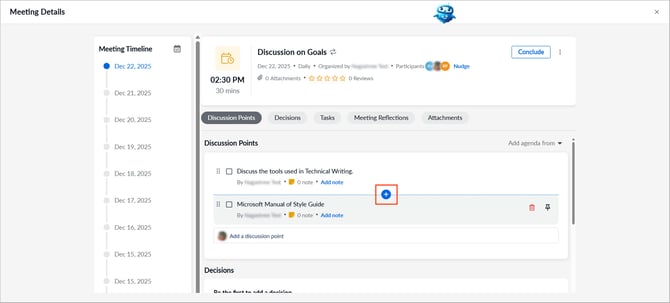
3. Enter the section name and click outside the field to save it.
Manage a section
2. Click the section name to edit it and then click outside the field to save the changes.
3. Hover over the section name and click the Delete  icon to remove it.
4. Drag the Six Dot  icon to reorder the section.
To add another section, add a new discussion point above the existing section.
📒Notes:
- Deleting a section moves all its discussion points to the top of other sections or discussion points (if any).
- You cannot pin sections.