![Engagedly dark.png]](https://help.engagedly.com/hs-fs/hubfs/Engagedly%20dark.png?height=31&name=Engagedly%20dark.png)
Skill categories and subcategories group related skills by function. This structure supports consistent proficiency assessment and helps maintain a clear, scalable skills framework across the organization. Admins use categories and subcategories to organize and manage skills effectively.
Create a category
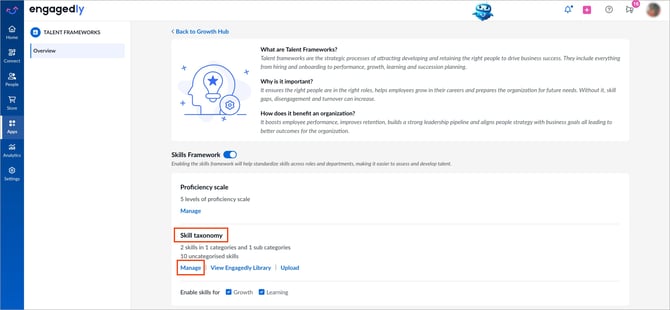
Navigate to Apps > Growth > Settings.
- Go to Skills Framework and ensure it is enabled.
- In the ‘Skill taxonomy” section, click Manage.
3. Open the Add drop-down at the top right and select Category.
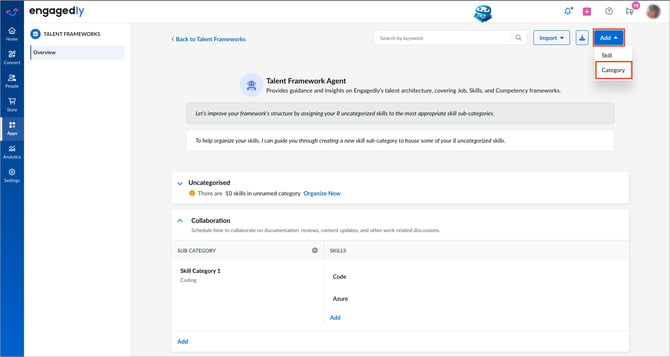
4. Enter a title and description and click Add to save it.
After you click “Manage”, the system opens the skill taxonomy page with default prompts.
💡Tip: Select a prompt to use Engagedly’s AI assistant, Marissa, to help you categorize skills.
📒Note: A skill can belong to multiple categories and subcategories. When you import or export skills, the same skill may appear multiple times across columns based on the categories and subcategories it is associated with.
Manage a category
All fields support inline editing.
- Click a category to edit its title or description.
- After making edits, click the Tick
 icon to save it.
 - Hover over a category and click the Delete
 icon to remove it.
Add a subcategory
Subcategories provide detailed tracking within a category.
- Under a category, go to the “SUB CATEGORY” section.
- Click the Plus
 icon.
icon.
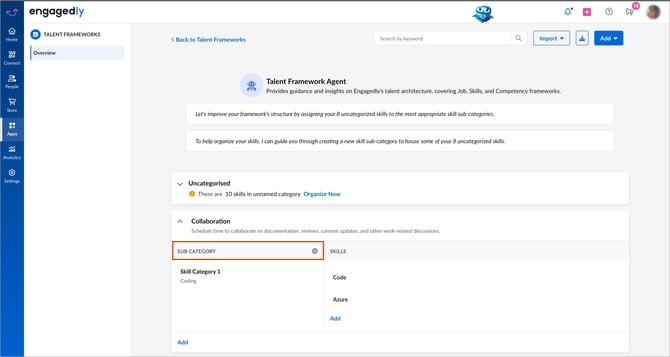
3. Enter a title and description, then click Add to save it.
Manage a subcategory
All fields support inline editing.
- Click a subcategory to edit its title or description.
- After making edits, click the Tick icon to save it.
- Hover over a subcategory and click the Delete icon to remove it.
After creating a category, add skills to it to assess employee capabilities and support performance evaluation. Refer to Add and manage skills.