![Engagedly dark.png]](https://help.engagedly.com/hs-fs/hubfs/Engagedly%20dark.png?height=31&name=Engagedly%20dark.png)
The skills feature helps admins define, organize, and manage skills within the organization. It supports skill assessment, development planning, and alignment of employee capabilities with business needs.
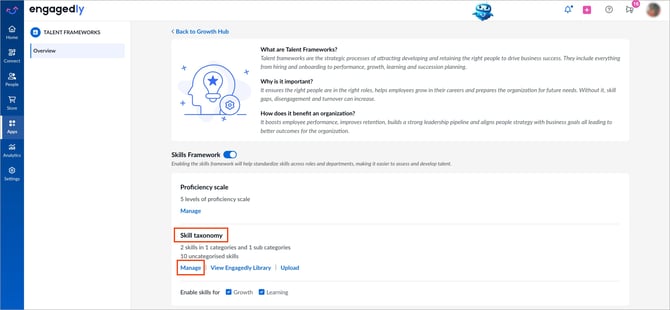
Navigate to Settings > Talent Frameworks.
If you have an active subscription to Engagedly's Growth app, you can also access Talent Frameworks from Apps > Growth > Settings.
- Go to Skills Framework and ensure it is enabled.
- In the ‘Skill taxonomy” section, click Manage.
Add a skill
You can add skills with or without assigning them to a category.
Option 1: Without creating a category
Use this option to quickly add skills when categories are not yet defined.
- Open the Add drop-down at the top right and select Skill.
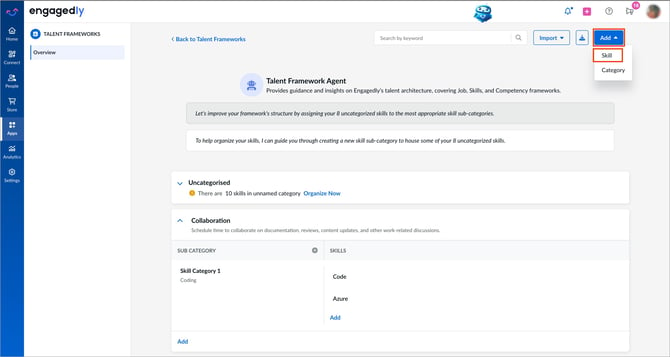
2. Enter the skill name and press Enter on your keyboard to save.
3. (Optional) Select a category and subcategory, then click Add.
📒Note: Skills created without a category appear under “Uncategorized”. Reorganize them at any time.
Option 2: After creating a category and a subcategory
Use this option when you already have a structured skill taxonomy.
- Click Add on the right side of the subcategory.
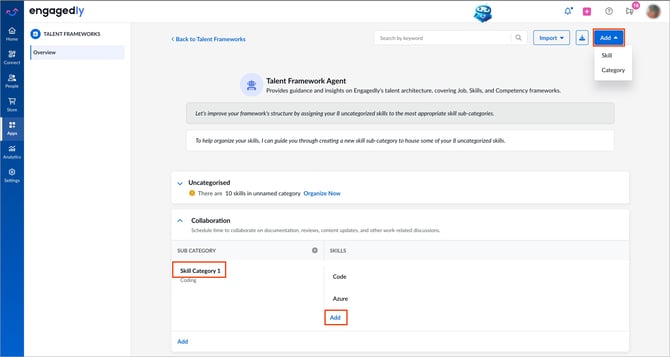
2. Enter the skill name and press Enter on your keyboard to save.
3. Click Save to finalize.
After creation, you can add a description to provide more context for the skill.
Manage a skill
- Click a skill to edit its title or description, and then click the Tick
 icon to save.
 - Hover over a skill and click Add Description to include details.
- Hover over a skill and click the Overflow
 Menu on the right.
- Select Move, select a category, and click Move to relocate the skill.
- Select Delete and click Delete again to remove the skill.
📒Note: A skill can belong to multiple categories and subcategories.