![Engagedly dark.png]](https://help.engagedly.com/hs-fs/hubfs/Engagedly%20dark.png?height=31&name=Engagedly%20dark.png)
Admins add candidates to a pipeline to build a structured pool of potential successors and track their development readiness for key roles.
Navigate to Apps > Talent Mobility > Talent Pipelines.
Option 1:
- Open a pipeline.
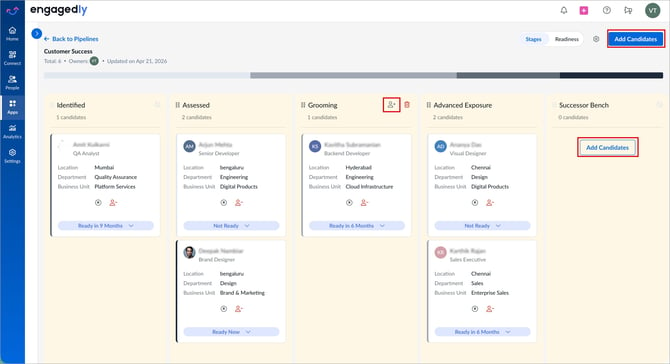
- Click Add Candidates at the top right.
- Select employees and click Add Candidates.
- Click Add to confirm.
By default, the candidate is added to the “Identified” stage.
Option 2:
You can add a candidate to a specific stage without moving them from another stage.
- Open a pipeline.
- Hover over the stage column header where you want to add a candidate.
- Click the Candidate icon (person with a + symbol) that appears in the stage header.
- Select employees and click Add Candidates at the top right.
- Click Add to place them in that stage.
Option 3:
If there is no candidate added to a status, you can add candidates directly to that specific stage.
- Open a pipeline.
- Click Add Candidates in a stage.
- Select employees and click Add Candidates at the top right.
- Click Add to place them in that stage.