![Engagedly dark.png]](https://help.engagedly.com/hs-fs/hubfs/Engagedly%20dark.png?height=31&name=Engagedly%20dark.png)
Admins add new reasons and associate them with employees when blocking them within the system. These reasons help track and document why an employee account is blocked, such as policy violations, security concerns, employee separation, or organizational decisions.
When blocking an employee, you can select a default or custom reason from the list.
Add a reason
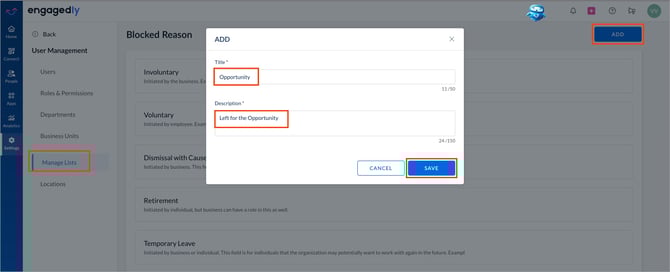
Navigate to Settings > User Management > Manage Lists.
- Scroll down to Blocked Reason.
- Click ADD on the right.
- Enter the title and description.
- Click SAVE.
Manage a reason
After adding a reason, you can edit or delete it as required. A deleted reason is no longer available for selection when blocking employees.
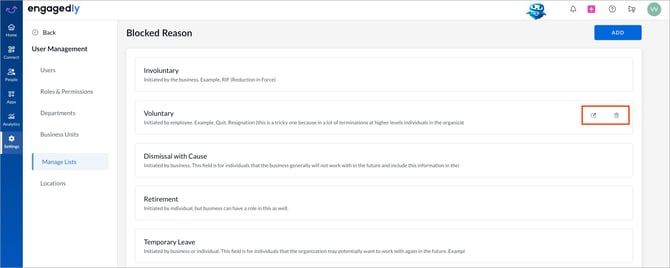
Hover over the reason and do one of the following:
- Click the Edit
 icon to update the reason.
 - Click the Delete
 icon to remove the reason.
📒Notes:
-
If a reason is deleted, it remains associated with employees who were previously blocked using that reason.
- You cannot edit or remove default reasons or reasons created by other admins in the organization.