![Engagedly dark.png]](https://help.engagedly.com/hs-fs/hubfs/Engagedly%20dark.png?height=31&name=Engagedly%20dark.png)
After creating a 360 feedback cycle, admins can add reviewees, import them in bulk, and remove them if required. Adding reviewees ensures that all relevant employees participate in the feedback process, improving transparency, engagement, and communication.
Add reviewees when:
- The cycle setup and configurations are complete.
- You want to ensure all relevant team members participate in the review process.
💡Tip: Add reviewees only after finalizing the cycle configurations and assigning a template to it (if manual template assignment is enabled).
Navigate to Apps > 360 Feedback > Cycles.
- Click Manage on the right side of a cycle.
- Go to the Add Reviewees tab.
- If no reviewees are added to the cycle yet, you get the “ADD REVIEWEES” and “IMPORT REVIEWEES” options.
- If reviewees are already added, perform the following:
- Click MANAGE PARTICIPANTS and select one of the following:
- Add: Select specific employees or all employees.
- Remove: Remove selected employees from the cycle.
- Import: Import reviewees in bulk using the template.
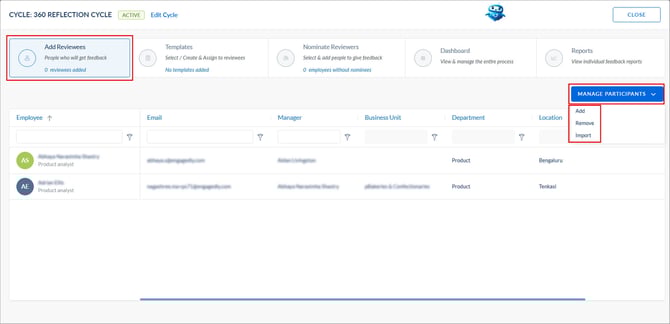
Perform the following as required:
Add reviewees
- Select Add.
- Open the drop-down at the top right and select one of the following:
- All: All employees are reviewees.
- Managers: Only managers are reviewees.
- Individual Contributes: Individual contributors are reviewees who do not have direct reports.
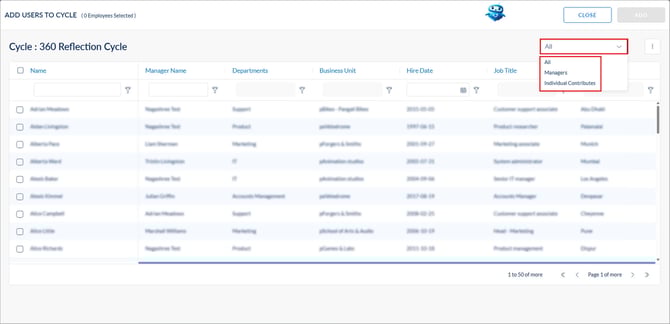
5. Select all or specific employees and click ADD at the top right.
6. Click ADD again to confirm.
Import reviewees
- Select Import.
- Click the Download
 icon to download the template.
 - Open the downloaded template, add the necessary details, and save it.
- Click UPLOAD, select the saved template, and then click NEXT.
📒Notes:
- Deleting any column causes the template upload to fail.
- Before downloading the template, enable the “Populate respondents based on relationship” option to automatically assign reviewers based on their predefined relationships with reviewees. You can also select the relationship if you enable this option.
Remove reviewees
- Select Remove.
- Select all or specific employees and click REMOVE.
- Click DELETE to confirm.
⚠️Warning: Removing reviewees results in the loss of their feedback progress.