![Engagedly dark.png]](https://help.engagedly.com/hs-fs/hubfs/Engagedly%20dark.png?height=31&name=Engagedly%20dark.png)
Goal alignment involves linking individual goals to a top-level goal, allowing progress at the individual level to influence the overall objective.
It ensures all efforts contribute to broader organizational objectives, improves tracking, increases accountability, and enhances cross-functional collaboration.
Goal creators, assigners, and owners can align individual goals. Admins have additional permissions to align top-level goals and manage their alignment.
📒Note: You can align only goals, not key results.
You can align goals when they contribute to a strategic objective or top-level goal or reflect team efforts.
💡Tips:
- To align a key result, first convert it into a goal.
- Only aligned goals contribute to top-level goal progress.
- Remove alignment when the goal no longer impacts the parent goal.
Navigate to Apps > Goals.
Perform the following actions based on your role and the goal you prefer to align:
|
Role |
Navigation |
|
Goal owner (Individual goal) |
My Goals > My Goals tab. |
|
Goal assigner (Individual goal) |
My Goals > Assigned by Me tab. |
|
Admin (Top-level goal) |
Go to Top Level Goals. |
|
Admin (Individual goal) |
Select My Org > Select an employee. |
|
Manager (Direct report’s goal) |
Select a team > Select an employee. |
Align a goal
- Open a goal you want to align to.
The goal card appears on the left, and the selected goal details appear on the right. - On the “Goal Details” page, under the goal title, click Align.
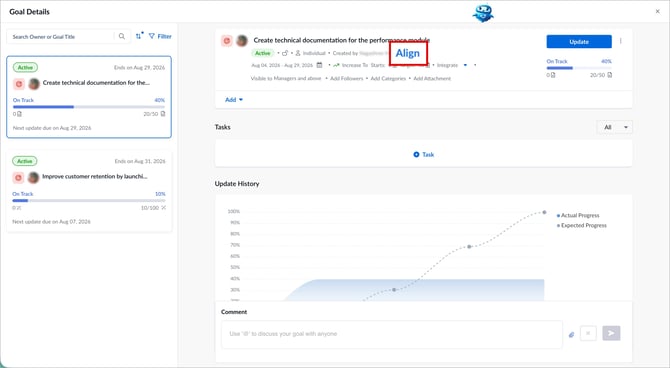
3. Go to the tab for the parent goal you want to align to: All Goals, Organization Goals, Department Goals, or Business Goals.
4. Hover over the desired goal and click Align.
Remove goal alignment
Detach a goal from its parent goal when the alignment is no longer required.
-
Click the Overflow
 Menu on the top right of a goal.
 -
Select Remove Alignment, and then click Remove.
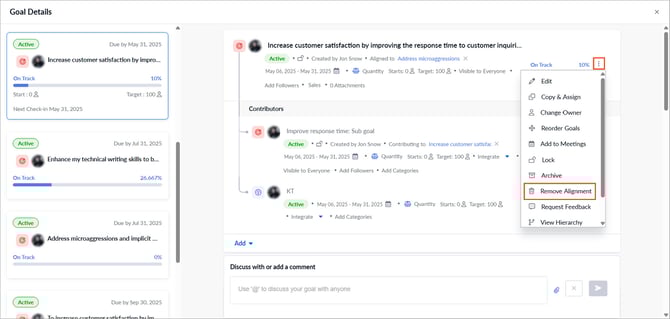
Alternatively, click the Cancel  icon next to "Aligned to" and then click Remove.
📒Note: The "Remove Alignment" option is available only if the goal is aligned.