![Engagedly dark.png]](https://help.engagedly.com/hs-fs/hubfs/Engagedly%20dark.png?height=31&name=Engagedly%20dark.png)
Admins must configure approval workflow settings to receive feedback approval requests from employees.
You receive notifications when new feedback requires your approval.
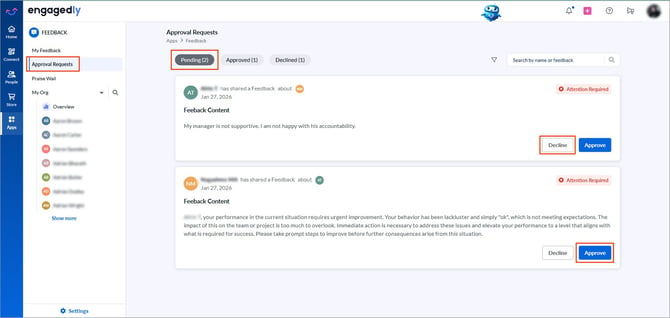
Navigate to Apps > Feedback > Approval Requests.
- Open the “Pending” tab to view all feedback requests awaiting approval.
-
- Use the “Approved” and “Declined” tabs to view previously processed requests.
-
- Click Approve, then click Confirm.
- Click Decline, enter a reason, and click Decline.
ℹ️Additional information:
- If an employee shares feedback about their reporting manager, only admins can view the feedback.
- Once the manager declines the feedback, it is no longer available for your approval, and vice versa.
- Each feedback request requires only one approval. Once either the manager or an admin approves or declines the request, the decision is final and visible to the other approver.
- If the feedback is not approved by the next day and you change the configuration, the system does not auto-approve it. It remains pending.
- The feedback is not published until it is approved.
- Employees cannot edit feedback after approval.