![Engagedly dark.png]](https://help.engagedly.com/hs-fs/hubfs/Engagedly%20dark.png?height=31&name=Engagedly%20dark.png)
Archive a 360 feedback cycle to hide inactive or completed cycles from the active cycles list. Admins and employees with the “Manage multirater review cycles” permission can archive active cycles or unarchive them at any time.
Archiving affects access based on the cycle's status:
- Ongoing cycles: Employees cannot view the cycle or submit responses while it is archived.
- Completed cycles: Employees can still view the cycle and access their reports.
- Submitted feedback: Archiving does not affect submitted feedback. All submitted responses remain intact and unchanged.
Unarchive a cycle whenever you need to reuse or reactivate it.
Archive a cycle when:
- The review period ends and you no longer need the cycle on the active list.
- The cycle is a duplicate or test you no longer plan to launch.
- You want to declutter the “Cycles” page without deleting historical data.
Before you begin
- Confirm that the cycle has reached its end date or no longer requires action.
- Communicate the archive to stakeholders if the cycle was visible to them.
⚠️Warning: After you archive a cycle, you cannot perform further actions from the “Manage” page, and the settings are not editable until you unarchive the cycle.
Archive a cycle
Archive a cycle from multiple navigation paths.
Option 1: Archive from the cycles page
Navigate to Apps > 360 Feedback > Cycles.
- Locate the cycle you want to archive.
- Click the Overflow
 Menu on the right side of the cycle name.
 - Select Archive.
- Click ARCHIVE to confirm.
Option 2: Archive from inside the cycle editor
Navigate to Apps > 360 Feedback > Cycles.
- Click the Overflow Menu on the right side of the cycle name.
- Select Edit.
The system opens the cycle editor. - Click the Overflow
 Menu at the top right.
 - Select Archive.
- Click ARCHIVE to confirm.
After you archive a cycle, the system removes the cycle from the default cycles view and locks its settings automatically.
Find an archived cycle
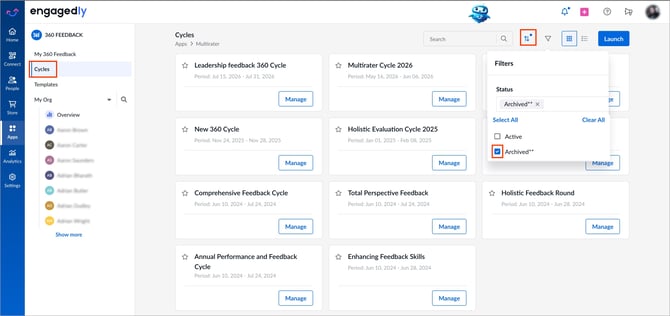
Navigate to Apps > 360 Feedback > Cycles.
- At the top right, click the Filter
 icon.
icon. - Open the drop-down, select the Archived status, and then click Apply.
The system displays all archived cycles that match the filter.
Unarchive a cycle
Restore an archived cycle when you need to view, edit, or reactivate it.
Option 1: Unarchive from the cycles page
- Filter the “Cycles” page to show Archived cycles.
- Locate the cycle you want to unarchive.
- Click the Overflow Menu on the right side of the cycle name.
- Select Unarchive.
-
Select UNARCHIVE to confirm.
Option 2: Unarchive from inside the cycle editor
- Filter the “Cycles” page to show Archived cycles.
- Locate the cycle you want to copy.
- Click the Overflow Menu on the right side of the cycle name.
- Select Edit.
The system opens the cycle editor. - Click the Overflow Menu at the top right.
- Select Unarchive.
- Select UNARCHIVE to confirm.
The system moves the cycle back to the active cycles list, and you can edit its settings again.
Best practices
- Archive completed cycles to keep the cycles page focused on active work.
- The archived status indicates to admins that no further action is possible for the review cycle.
- Use the “Archived” filter to audit historical cycles during compliance reviews or end-of-year reporting.
- Unarchive a cycle only when you actively need to view or reactivate it, to avoid confusion in the active list.
- Use “Make a copy” instead of unarchiving when you only want to reuse the structure for a new cycle.