![Engagedly dark.png]](https://help.engagedly.com/hs-fs/hubfs/Engagedly%20dark.png?height=31&name=Engagedly%20dark.png)
Calibration ensures that performance ratings are consistent and fair across the organization. It allows leaders, admins, and managers to review and adjust performance and leadership potential ratings after managers submit their reviews.
If calibration is enabled for your organization, admins can update performance and leadership potential ratings for individual employees or in bulk using the template.
In the 9-box matrix, performance ratings appear on the X-axis, and leadership potential ratings appear on the Y-axis.
📒Notes:
- Calibration ratings become available only after the managerial review is completed, even if employees skip their self-review.
- In the grid view, the “Calibrated Rating” and “Calibrated LP Rating” column headers are highlighted in red to indicate these fields are editable.
Calibrate ratings for individual employees
Navigate to Apps > Performance > Cycles.
- Go to the tab where your cycle is listed: Focal Review, Hire Based Review, or Anniversary Based Review.
- Click CALIBRATION at the top right.
📒Note: You can view employees in the calibration grid only after managers submit their ratings.
The calibration page displays visual charts for performance rating distribution and leadership potential rating distribution. When both charts are available, the system also generates the 9-box matrix.
However, if the “Employee Leadership Potential” feature is disabled for the cycle, the calibration page displays only the performance rating distribution chart. It cannot generate the leadership rating distribution or the 9-box matrix.
- Hover over the graph to view the percentage and number of employees.
- Click a cell in the 9-box matrix to filter employees by that rating combination.
- Click the Reset
 icon to refresh the grid.
4. Use the filter at the top left to view a specific group or employee level as required.
📒Note: You can select “Smart Groups” and filter the specific group to keep ratings confidential during discussions.
5. Hover over the “Calibrated Rating” or “Calibrated LP Rating” column, and click the Edit  icon for an employee.
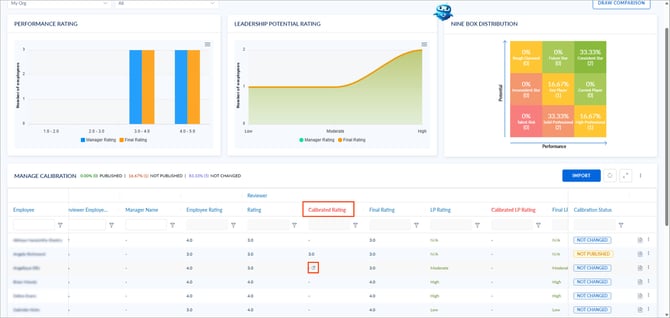
6. Select a rating, add notes, and click CALIBRATE.
📒Note: The calibrated rating becomes the final rating. If no change is made, the manager’s rating remains final, and the “Calibration Status” displays “Not Changed”.
Alternate ways to calibrate
- Click the Overflow Menu for an employee and select Calibrate Rating or Calibrate Potential.
- Click the Form
 icon to open the review form and then click the Edit
  icon at the top right beside the “Reviewer Rating”.
Calibrate ratings for multiple employees
Calibrate the performance and leadership potential ratings in bulk.
- On the “CALIBRATION” page, click IMPORT and then click the Download
 icon.
icon. - Open the downloaded file, enter ratings, and save the file.
📒Notes:
- You can enter ratings and notes in columns highlighted with the Hashtag # icon as required. If you edit other columns, it results in an upload failure.
- After uploading the file, if you manually make any changes to ratings, those changes do not reflect in the file.
3. Return to the Engagedly platform, click UPLOAD, select the file, and click IMPORT.
💡Tip: Refresh the page after importing employees in bulk.
4. Click the Reset  icon on the right to refresh.
Publish ratings
Publishing makes calibrated ratings visible to employees.
- For individual employees
On the “CALIBRATION” page, click the Overflow  Menu for an employee, select Publish Calibration, and click PUBLISH.
- For multiple employees
On the “CALIBRATION” page, click the Overflow Menu at the top right and select Bulk Publish.
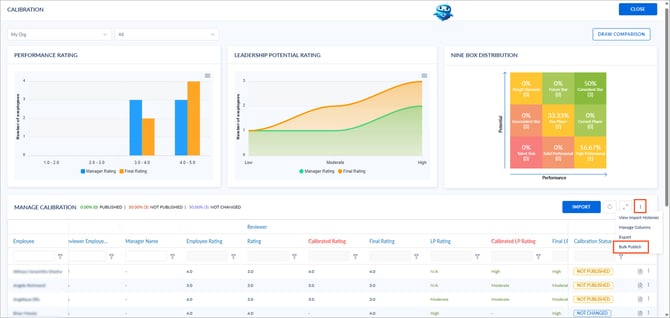
After publishing, the “Calibration Status” changes to ”PUBLISHED”, and employees can view the final ratings on their review forms.
You can unpublish the calibrated ratings after publishing. When you unpublish the ratings, the system uses the manager and employee ratings to calculate the average rating.
💡Tip: If your review process includes calibration, keep review form visibility disabled until calibration is complete. This prevents employees from viewing both the original and calibrated ratings, which may cause confusion or dissatisfaction when the ratings differ.
After you publish, you can view and download calibrated ratings.
Compare ratings
Compare the manager, calibrated, and final ratings between two cycles, business units, departments, locations, and job titles.
- On the “CALIBRATION” page, click DRAW COMPARISON at the top right.
- Open the drop-down list and select:
- Up to three cycles
- A business unit, department, location, or job title
- The rating you want to compare
3. Click COMPARE.
📒Note: Calibration status
- Not changed: The rating is not calibrated.
- Not published: The rating is calibrated, but it is not published to make it visible on the review form.
- Published: The rating is calibrated and visible on the review form.
Download calibration history
You can download the calibration history for individual or multiple employees.
The calibration history allows you to:
- Review past calibrated ratings for future reference or analysis.
- Track changes made to performance and leadership potential ratings over time.
For individual employees
- On the calibration page, click the Overflow Menu for an employee and select View History.
- Click the Download icon at the top right of the calibration history.
For multiple employees
- Click the Overflow
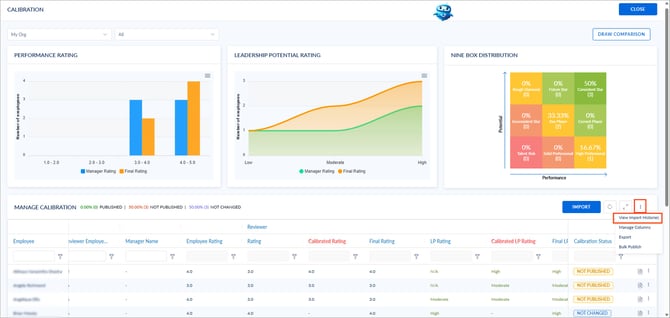
 Menu at the top right and select View Import Histories.
 - Hover over a history and click the Download icon.