![Engagedly dark.png]](https://help.engagedly.com/hs-fs/hubfs/Engagedly%20dark.png?height=31&name=Engagedly%20dark.png)
Admins can configure feedback features, visibility, categories, and approval workflows for the organization.
Navigate to Settings > Feedback > Settings.
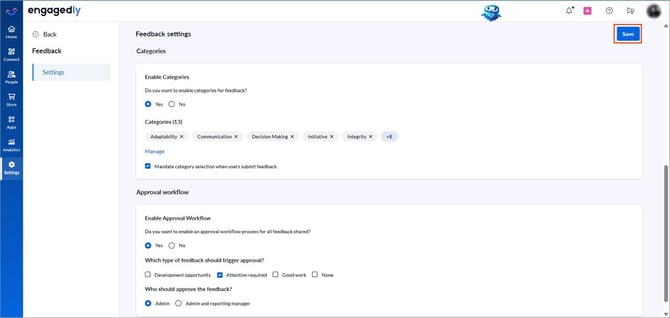
After configuring the required settings, click Save at the top right.
Feature settings
Control how employees give and receive feedback.
- Share/Request feedback: Allows employees to give or request feedback.
- Praise: Allows employees to recognize and appreciate others.
- Allow users to submit feedback anonymously: Allow employees submit anonymous feedback.
- Make 'Feedback type' mandatory while sharing feedback: Employees must select a feedback type when sharing.
- By default, share the feedback with the recipient: Recipients can automatically view feedback shared with them. However, feedback providers can change this setting when sharing.
- Make dashboard visible to employees and managers: Enable access to personal dashboards.
- Enable sharing feedback with others: Allow employees to share feedback across the organization.
📒Note: When a feature is disabled, employees cannot access that functionality.
Visibility settings
Manage who can view feedback.
- Allow managers to view feedback shared about their team: Allow managers to view feedback received by their team. By default, feedback is visible to managers. Feedback providers cannot change this setting.
- Make feedback visible for: Reporting manager only, or both the reporting manager and skip-level manager.
- Allow users to control the visibility of shared feedback to their manager: Allow employees to select whether managers can view the feedback shared.
- Managers cannot view submitted feedback by default: Managers cannot view the feedback submitted by their team.
- Enable the permission to 'View feedback of all employees: Managers with this permission can view all feedback shared across the organization, including the anonymous feedback providers names.
- Enable current manager to view feedback shared with previous manager: New manager can view feedback shared with the previous manager about their team.
📒Note: Previous managers can still access the historical feedback in the overview and reports.
Category settings
Organize feedback using categories.
- Enable categories for feedback: Allow employees to select categories when sharing.
For setup steps, refer to Add and manage feedback categories.
-
Mandate category selection when users submit feedback: Feedback providers must select a category when sharing.
Approval workflow settings
Enable an approval process to review feedback before it is delivered.
- Enable approval workflow for all feedback shared.
Once enabled, configure the following:
- Which type of feedback should trigger approval?: Select which types need approval.
- Who should approve the feedback?: Admin only or both the admin and the reporting manager.
ℹ️Additional information:
- If an employee shares feedback about their reporting manager, only admins can view the feedback.
- Once an admin declines the feedback, it is no longer available for manager approval, and vice versa.
- Each feedback request requires only one approval. Once either the manager or an admin approves or declines the request, the decision is final and visible to the other approver.
- If the feedback is not approved by the next day and you change the configuration, the system does not auto-approve it. It remains pending.
- Employees cannot edit feedback after approval.
After configuring the required settings, click Save at the top right.