![Engagedly dark.png]](https://help.engagedly.com/hs-fs/hubfs/Engagedly%20dark.png?height=31&name=Engagedly%20dark.png)
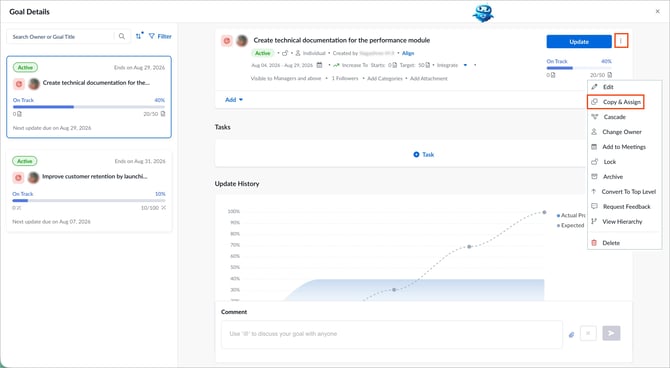
The goal creator, assigner, or owner can create a copy of a goal (with or without its key results) and assign it to multiple employees at once.
Navigate to Apps > Goals.
- Open the goal you want to manage.
- Click the Overflow
 Menu at the top right of a goal.
 - Select Copy and Assign.
-
- Retain the original goal level, or
- Change it to an individual goal for the assignee
-
- Align to copying goal: The copied goal is aligned under the parent goal.
- Contribute to copying goal: The copied goal is aligned and marked as a contributor, so its progress impacts the parent goal.
- No option selected: The copied goal is independent, without alignment or contribution to the parent goal.
6. Select the employees and click Assign.
The system creates a copy of the goal for each selected employee based on the options you selected.