![Engagedly dark.png]](https://help.engagedly.com/hs-fs/hubfs/Engagedly%20dark.png?height=31&name=Engagedly%20dark.png)
Creating a 360 feedback cycle in an organization provides comprehensive feedback from multiple sources, helping employees understand their strengths and areas for improvement. This promotes personal growth, enhances performance, and aligns individual goals with organizational objectives.
Admins and individuals with “Manage multirater review cycles” permission can create and configure the 360 feedback cycle based on their organization's requirements. Learn more about Roles and permissions.
Create a cycle
I. Cycle information
Navigate to Apps > 360 Feedback > Cycles.
- Click Launch at the top right.
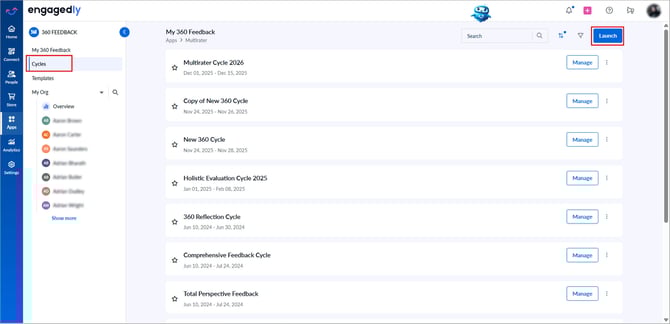
2. Enter the cycle name and click NEXT.
3. (Optional) Enter the description.
4. Set the cycle start and end dates.
5. Define the 360 feedback period and click NEXT.
II. Rating scale
Define and configure the rating scale.
- Select Enable Rating Scale to include a rating scale.
- Select a rating scale type and edit it if required:
- Numeric Rating: Used to rate employee performance using numbers.
- Verbal Rating: Used to rate employee performance using shortcodes.
3. (Optional) Include not applicable (N/A) in the rating scale.
4. Click NEXT.
III. Process configuration
Configure nominations, reviews, template assignment, and report settings.
- Under the “NOMINATION CONFIGURATION’’, define the nomination settings.
- Decide who can nominate respondents.
You can allow managers and employees to nominate respondents.
-
- HR can modify nominations made by employees or managers.
- Managers modify nominations made by their direct reports.
- Set nomination start and end dates.
- Set a notification date for HR and managers (if allowed to nominate) to finalize nominations.
- Set default nominations.
- Allow employees to voluntarily nominate themselves.
- Allow external respondent nominations.
- Set the recommended number of nominations.
- Set the start date for respondents to give feedback.
- Allow respondents to decline feedback requests.
- Notify nominators when a respondent declines.
📒Note: This option is available only when “Allow respondents to decline feedback requests” is enabled.
- Notify employees when respondents submit feedback about them.
- Notify employees when they are added as respondents.
- Set a reminder date for respondents to submit feedback.
- Enable and customize instructions for respondents.
2. Under the “REVIEW CONFIGURATION”, manage respondent relations for feedback.
By default, “Self”, “Manager”, “Direct Reports”, “Peers”, and “Others” are available.
- Add custom relations, if required.
ℹ️Additional information:
- Feedback from anyone other than self or manager is categorized as “Others”.
- If the system cannot determine the relationship, it is categorized as “Others”.
- When custom relations are enabled, respondents must manually select their relationship with reviewees. Otherwise, the system assigns "Others" automatically.
3. Under the “TEMPLATE CONFIGURATION”, define who can assign templates to employees.
- Assign a single template to all employees or assign different templates.
📒Note: If you assign a single template, you can select it while creating the cycle.
- Decide who can assign templates.
📒Note: If assigning different templates, you can assign them yourself or allow managers to assign them to their teams.
4. Under “REPORT CONFIGURATION”, define anonymity, visibility, and report-sharing settings.
- Decide whether respondent names are anonymous.
- Set the visibility threshold.
If you set the visibility threshold to three, the employee must receive at least four responses for the system to show the relationship in the report.
- Group relationships to “All” if the threshold is not met.
- Decide whether to hide respondents' comments from employees.
- Set how the final report is shared after the cycle ends.
- Automatic: Employees and managers can view the report on the specified date.
- Manual: Export and share the PDF manually.
5. Click NEXT.
IV. Summary
Review all configurations and make any required edits. If everything looks correct, click SAVE at the top right.
Next steps
After creating a cycle, you can:
- Manage a 360 feedback cycle.
- Add and manage reviewees in a 360 feedback cycle.
- Assign a 360 feedback template to reviewees.
💡Tip: Do not edit the cycle after adding reviewees.
For definitions of key 360 feedback-related terms, refer to the glossary.