![Engagedly dark.png]](https://help.engagedly.com/hs-fs/hubfs/Engagedly%20dark.png?height=31&name=Engagedly%20dark.png)
By default, any employee in the organization can create courses if admins give them access. For more details on permissions, refer to the LXP user guide for admins.
📒Note: Only admins and learning managers can create learning paths or import courses from integrated learning applications.
If your organization has integrated external learning providers, you can import courses from Engagedly Academy or other applications, such as Udemy, LinkedIn Learning, BizLibrary, and Go1.
Authors can create learning in the following ways:
- Create a course
- Create a learning path
- Utilize existing courses
Create course
Create a course from scratch and customize it as required.
Navigate to Apps > Learning > Author.
- Click Add at the top right.
- Select Create Course.
- Enter the course title.
The Marissa -4.png?width=18&height=20&name=Marissa%205@2x%20(2)-4.png) icon appears only after you enter the title.
icon appears only after you enter the title.
Optional steps:
- Upload the cover photo for the course.
- Click the Marissa
-3.png?width=18&height=20&name=Marissa%205@2x%20(2)-3.png) icon to generate a description or enter it manually.
icon to generate a description or enter it manually.
4. Click Save.
The course is successfully created, redirecting you to the course edit page, where you can manage the content and configure the settings.
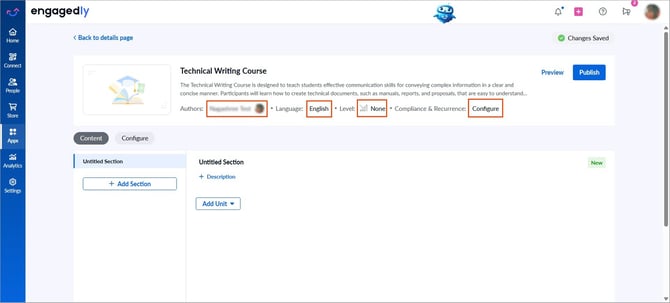
In the “Content” tab:
- Edit the author.
- Add a co-author.
- Specify the course language and level.
- Configure the compliance settings.
- Add sections and units.
- Publish the course.
📒Note: You can add co-authors for those who have the learning manager's permission. Refer to the LXP user guide for admins.
All fields are in-line edits. Click a field to make the necessary changes.
In the “Configure” tab:
- Add learner outcomes.
- Add the category path, relevant skills, competencies, and tags.
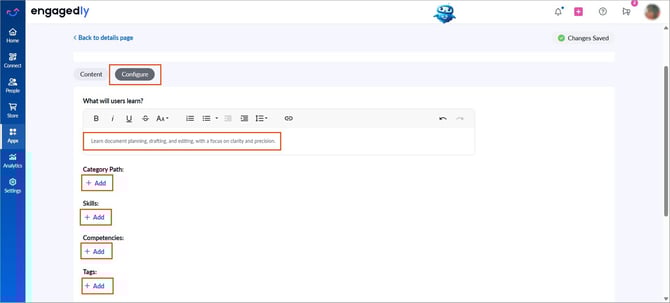
📒Note: While adding these options, you can view and select from the existing categories, skills, competencies, and tags already available in your organization.
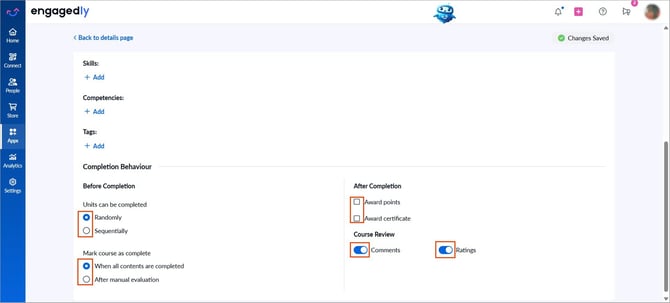
- In the “Completion Behavior” step, customize settings for before and after course completion.
- Select Randomly or Sequentially, allowing learners to complete the units.
- Decide when the learners can mark the course as completed.
- Enable Award points and Award certificate if required.
- Toggle the option to enable Comments, Ratings, or both.
Additional information:
- If you enable the “After manual evaluation” option, learners cannot mark the course as completed until you evaluate it. You can evaluate learners in the “Evaluation Status” or “Scores” fields located in the “Learners” tab, which automatically marks their course status as completed.
- Learners do not receive points for the course if course-level completion points are disabled at the global level. To enable points, refer to the View available activities for activity badge.
- If you enable only ratings, learners must rate the course.
- If you enable only comments, learners must comment on the course.
- If both ratings and comments are enabled, learners must rate the course but can skip commenting.
The changes are auto-saved.
Utilize existing courses
Instead of creating a course from scratch, reuse and update an existing course. This helps align content with organizational objectives, saving time and effort in the content development process.
Navigate to Apps > Learning > Author.
- Click Add at the top right.
- Select Utilize existing courses.
- Hover over a course and click Preview to view its content if required.
- Select the required course and click Use.
The existing course is successfully duplicated, redirecting you to the course edit page, where you can manage the content and configure the settings.
Next steps
- After creating or utilizing a course, add and manage sections and units to build the course structure and include learning content.
- After the course structure is complete, publish the course and push it to the library to make it accessible for all employees.