![Engagedly dark.png]](https://help.engagedly.com/hs-fs/hubfs/Engagedly%20dark.png?height=31&name=Engagedly%20dark.png)
Creating a performance review cycle helps the organization evaluate employee performance in a structured and consistent way. It supports goal alignment, meaningful feedback, and ongoing development for employees.
Admins can set up a review cycle and configure its workflows, timelines, participants, templates, and visibility to reflect the organization’s processes. This ensures a smooth, fair, and well-organized review experience for employees and managers.
Access cycle page
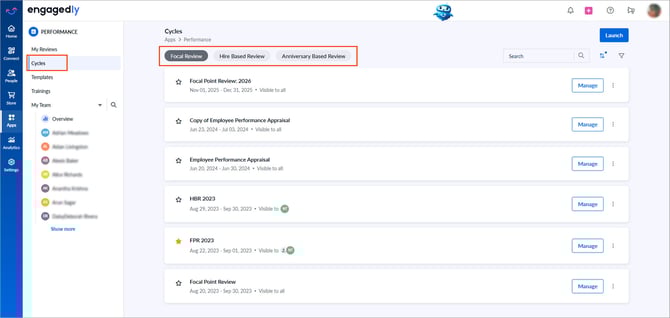
Navigate to Apps > Performance > Cycles.
Three types of review cycles are available:
- Focal Review: For organization-wide review periods.
- Hire-Based Review: Based on employee joining dates.
- Anniversary-Based Review: Triggered by work anniversaries.
📒Note: In hire-based and anniversary reviews, employees are added automatically based on their joining date.
Create a cycle
To create a performance cycle, follow these steps:
II. Rating scale
V. Post review
VI. Notifications
VII. Summary
I. Cycle information
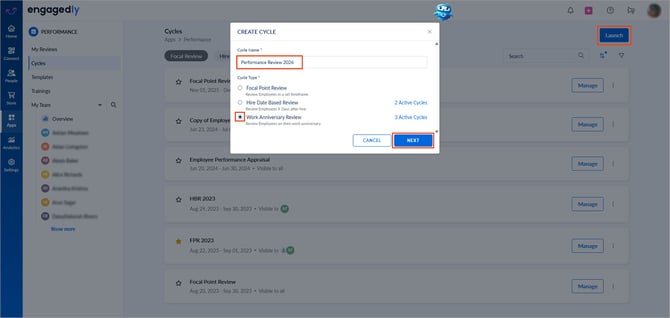
- Click Launch, enter the cycle name, select a cycle type, and click NEXT.
2. (Optional) Enter the description.
3. Set the cycle start and end dates.
4. Define the review period and click NEXT.
II. Rating scale
Define and configure the rating scale.
- Use the toggle to include a rating scale.
- Select a rating scale type:
-
- Numeric Rating (edit if required)
- Verbal Rating (customize under “ADVANCED SETTINGS”)
3. Select a rating calculation type:
-
- Average: Calculates the average of all ratings.
- Sum: Calculates the total of all ratings.
📒Notes:
- Average (Default): Calculates the mean score by dividing the total of all submitted ratings by the number of ratings. Use this method to evaluate overall performance based on a normalized rating value.
- Sum: Calculates the total of all submitted ratings without normalization. Use this method when cumulative scoring or total points achieved is more important than the average score.
4. Click VIEW to expand the “ADVANCED SETTINGS”.
4. Use the toggle to select the required options:
-
- Display the rating scale in the review form.
- Add a custom label for the rating scale.
(Example: Performance Scale or Assessment Scale)
-
- Include not applicable (N/A) as an option in the rating scale.
- Enable rounding off the average rating to the nearest whole number.
(Example: 3.3 rounds to 3.) - If using a “Verbal Rating” scale, add and configure a grading scale.
5. Click NEXT.
📒Notes:
- Enter the correct minimum and immediate next maximum grades to ensure ratings display as grades in the review form.
- Incorrect grade values display as “Out of range”.
III. Process configuration
Define participants, timelines, and the review flow.
You can:
- Allow employees to complete self-reviews and set due dates.
- Enable rollback reviews for editing and select who can rollback.
- Allow managers to start reviews before employees submit self-reviews.
- Set manager review deadlines.
- Control review visibility (decide who sees what and when).
📒Note: When visibility is shared with both HR and managers, weekly reminders are sent until the cycle ends.
6. Restrict access to review forms after the review end date.
📒Notes:
- Restriction applies only to focal reviews.
- You can extend the end date to reopen review forms, allow managers to delegate or rollback reviews, and send daily reminders.
- For more information, refer to the FAQs on review form restrictions and review reminders.
-
- Approve Review: Approve or rollback a manager’s review.
- Edit Manager Review: Edit and approve ratings and comments.
8. Click VIEW to expand “ADVANCED SETTINGS”.
9. Configure as required:
-
- Decide who assigns or recalls templates.
- Select how templates are shared:
- Automatic: Employees added to the cycle automatically get access to the template.
- Manual: Templates are assigned and shared manually. Decide who can share.
- Allow additional reviewers and specify who can invite them.
- Allow employees to view comments from additional reviewers.
- Allow managers to view employees' self-reviews.
- Allow additional reviewers to view both employee and manager reviews.
- Configure which ratings (overall, section, subsection) are visible to employees.
- Allow managers to delegate their reviews.
- Decide whether to freeze goals after templates are shared, and specify how many days after the share date to lock adding, editing, or deleting goals and their weightage.
- Use the toggle to freeze goals.
-
-
- Select the role (Self, Manager, or HR) for whom you want to freeze goals.
- For each selected role, enter the number of days that the role can modify goals after the template is shared.
-
Examples:
-
-
- If the template is shared on 1 March and you enter 7, goals lock on 8 March.
- If the template is shared on 1 March and you enter 0, goals lock immediately.
- For each selected persona, select Allow weightage change to allow the persona change goal weightage during this period.
-
10. Click NEXT.
📒Note: When automatic template sharing is enabled, the template is assigned and shared on the same date. The freeze period starts on the template share date.
For more information on personas, zero-day freezes, and how freezing works with goal lock, refer to Understand freeze goals in a performance cycle.IV. Review form sections
Add, configure, and reorder sections, which appear in the review form.
-
Click REORDER, drag the Six-Dot
 icon, and click SAVE.
📒Note: You can reorder only the sections that are enabled.
-
Click a section name to rename it.
Manage section settings
-
Enable overall remarks for employees, managers, and/or admins.
-
Enable ratings and comments for employees and/or managers.
-
Enable leadership potential.
-
Allow employees to view their potential rating.
-
Allow managers to determine whether the employee has leadership potential.
-
Determine potential using ratings or a questionnaire.
-
Use predefined ratings or expert questions with weighted scores for the 9-box grid or edit it as required.
-
📒Note: The 9-box grid is available for focal and anniversary reviews.
-
Enable manager recommendations (visible only to managers).
-
Allow employees to view manager recommendations.
-
-
Enable review notes, development plans, training recommendations, one-on-one meetings, and HR recommendations.
Add sections
You can add custom sections with various question types to gather employees’ feedback on their performance review process.
-
Click + ADD SECTION.
-
Enter a section name and select participants.
-
(Optional) Make responses mandatory.
-
Click + Add question, then:
-
Enter your question.
-
Select a question type (Text, List, Single Select, Multiple Select, Star Rating).
-
Add options if applicable.
-
5. Click SAVE.
You can edit, disable, or delete sections at any time.
📒Notes:
-
Disabling a section retains its questions.
-
Deleting a section removes its questions permanently.
6. Click NEXT.
V. Post review
Configure what happens after the review is completed.
- Enable sign-off for employees, reviewers, and/or HR.
- Customize the sign-off message.
- Enable the resolution workflow (requires sign-off and resolution workflow enabled for employees) to allow employees to raise issues or concerns during the review process.
📒Note: Enabling the resolution workflow is a prerequisite for the "Notify when a review resolution is requested" setting under "Notifications". If the workflow is "Off" for a cycle, the resolution notification setting does not apply.
-
- Set a start date.
- Enter the question and question type.
5. Click SAVE.
6. Click NEXT.
The system automatically sends the post-review feedback questionnaire to all employees in the review cycle after they sign off. Ensure the post-review feedback start date is earlier than the cycle end date and later than the manager review due date.
📒Notes:
- Employees must sign off if sign-off is enabled.
- To enable employee sign-off, ensure that manager reviews are visible to employees.
VI. Notifications
-
Set reminders for participants to complete their review tasks.
-
Select the audience to notify for specific events.
- Click NEXT.
VII. Summary
Review all configurations and make any required edits. If everything looks correct, click SAVE at the top right.
Next steps
After creating a cycle, you can:
For definitions of key performance-related terms, refer to the glossary.