![Engagedly dark.png]](https://help.engagedly.com/hs-fs/hubfs/Engagedly%20dark.png?height=31&name=Engagedly%20dark.png)
A performance review template is the foundation of your review process. It is a structured set of sections and questions that helps admins evaluate employee performance.
Engagedly provides a library of professionally designed templates created by industry experts. HR teams can also build their own custom templates to reflect the organization’s culture, values, and performance expectations. Any custom template you create is saved in “Your Library”. After publishing, it is saved in the “Organization Library”, allowing other admins to easily use it when creating future review cycles.
By designing the right template, HR can bring together key elements, such as goals, Competencies, and Individual Development Plans (IDPs), into one unified review form, making the evaluation process more meaningful, fair, and holistic for both employees and managers.
Access template libraries
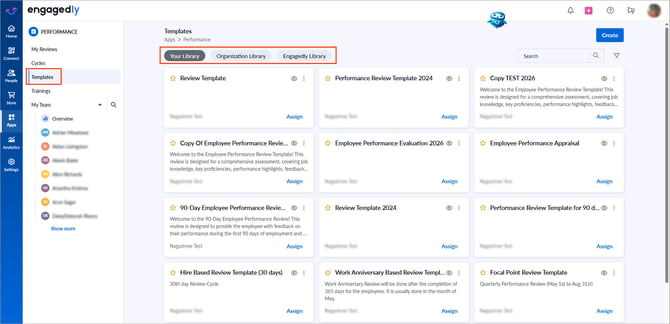
Navigate to Apps > Performance > Templates.
The “Templates” page is organized into three libraries that help HR teams easily find, manage, and reuse performance review templates:
- Your Library: Contains templates you create. You can update and manage these templates as required.
After publishing a template, it moves to the “Organization Library”, where other admins can view and use it. However, they cannot edit, delete, or archive it.
- Organization Library: Contains templates published by all admins in your organization. You can use these templates to create review cycles. However, you cannot edit, delete, or archive templates created by other admins. This ensures consistency and maintains the integrity of the template.
- Engagedly Library: Contains professionally designed templates curated by industry experts. You can preview and copy these templates, which are saved to the “Organization Library”, allowing you to tailor them to your organization’s needs and use them for future reviews.
These libraries make it easy to organize, reuse, and tailor performance review templates, ensuring a consistent and efficient review process across your organization.
Add a template
You can add a performance review template from the “Engagedly Library” to “Your Library” and use it for a performance cycle.
Navigate to Apps > Performance > Templates.
- Open the Engagedly Library tab.
- Click the Overflow
 Menu on a template and select:
- Make a copy: Create an editable copy and save it in “Your Library”.
- Preview: Review its contents before using it.
- Export: Download the template as a PDF file.
Alternatively, click Copy on a template to create an editable copy and save it in “Your Library”.
📒Note: To preview the template, you must select a cycle.
Create a template
You can create a custom performance review template tailored to your organization’s requirements.
Navigate to Apps > Performance > Templates.
- Click Create, enter the template name, and click NEXT.
You are directed to the template details page to add sections and questions.
2. (Optional) Enter notes visible only to template editors.
3. (Optional) Enter a category and press enter on your keyboard to save it. A category helps to organize templates.
Add sections
4. Under “TEMPLATE SECTIONS”, enter a section title and description.
5. Use the toggle:
- Enable employee ratings and comments.
- Enable manager ratings and comments.
6. (Optional) Select Mandatory for both or as required.
7. Use the toggle to enable a custom rating scale for the section.
8. After enabling, click CONFIGURE SCALE, set it up, and then click SAVE.
9. Click SAVE again to save the section.
📒Note: Contact our support team to enable the “Custom rating scale” feature for your organization. If it is disabled, the section uses the default rating scale defined in the cycle settings.
💡Tip: You can enable different rating scales for each section within a template. Learn more in How are section ratings calculated.
Add subsections
After you add a section, the subsection field appears automatically.
10. Enter a title and notes for the subsection.
11. Click + ADD FROM COMPETENCY LIBRARY to include competencies from the library.
12. Click SAVE.
Add questions
After saving a subsection, the question field appears automatically.
13. Click + Add question, enter the title and note (if required), and click SAVE.
💡Tip: Use sections to organize performance areas, such as goals, competencies, and development plans. Subsections and questions help you evaluate within each area.
Actions at the section level
- Add multiple sections and questions to expand the structure.
- Hover over a section, subsection, or question to edit, delete, or reorder it.
- Add weighting.
- Add goals, job competencies, and IDPs
Add weighting
Add weighting to assign importance to each section, subsection, or question.
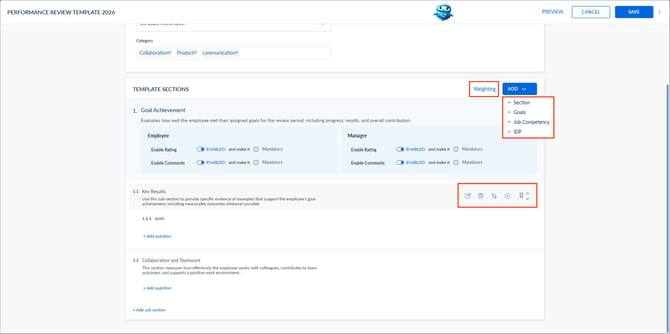
- In “TEMPLATE SECTIONS”, click Weighting to assign importance to each section, subsection, or question.
- Enter weights to each section and click SAVE.
Note: The total weighting across all sections must equal 100%. The same rule applies to subsections and questions.
Add goals, job competencies, and IDPs
Including goals, competencies, and IDPs in a review form helps provide a complete picture of an employee’s performance and development.
- In “TEMPLATE SECTIONS”, click ADD.
- Select + Section, + Goals, + Job Competency, or + IDP.
- Enter the name and description.
- Select the required options and click SAVE.
Additional options
- Add one or multiple goals or IDPs.
- Make goals or IDPs mandatory for employees.
- Enable or disable employee and manager ratings and comments on these elements.
- Automatically add goals and IDPs to pull them directly into the review form. Learn more in Auto-fetch goals and IDPs to the performance review.
📒Notes:
- Goals are auto fetched in the review form based on the review period, eliminating manual search, repeated filtering, and the risk of missing or incorrect goals.
-
Competencies are automatically added based on the employee’s job title.
Preview and save the template
After creating a template:
- Click PREVIEW at the top to review it.
- Click SAVE at the top right.
After you save, the template is saved in “Your Library”. You can then assign the template to an existing performance cycle or create a new one.
📒Note: You can assign templates only to employees who are already part of the selected cycle.
Next steps
After creating a template:
For definitions of key performance-related terms, refer to the glossary.