![Engagedly dark.png]](https://help.engagedly.com/hs-fs/hubfs/Engagedly%20dark.png?height=31&name=Engagedly%20dark.png)
Admins can create and manage company badges to recognize employee achievements.
Navigate to Settings > Rewards > Settings.
- In “Company Badges”, switch the toggle to enable the feature.
- Click Manage to configure badges.
- Perform any of the following actions:
Add a company badge
-
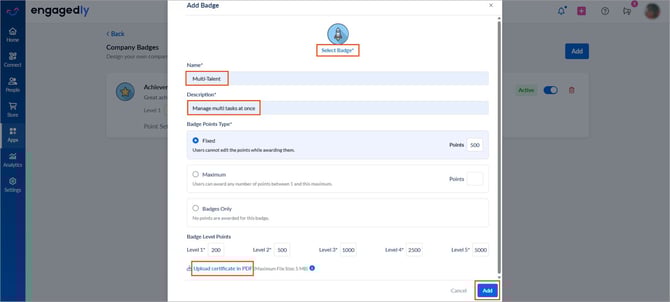
- Click ADD at the top right.
- Click Select Badge to choose an icon from the badge library or upload your own.
- Enter the badge name and description.
- Under “Badge Points Type”, select one of the following:
-
-
- Fixed: Awards a set number of points. Employees cannot modify the points while awarding the badge.
- Maximum: Allows employees to award points up to a specified limit. Employees can adjust the points, but not exceed the maximum limit.
- Badges Only: No points are awarded.
-
-
-
- Fixed: Enter the fixed points.
- Maximum: Enter the maximum points.
-
6. Enter the required points for each badge level.
7. (Optional) Click Upload certificate in PDF and upload a certificate template with the appropriate employee tags.
8. Click ADD.
Certificate template guidelines: When a company badge is awarded, the system automatically generates a certificate (PDF), fills in the employee’s name and award date, and notifies the recipient by email.
Before uploading, ensure the certificate displays the correct details and includes these tags:
-
- kb-article-module-5: Displays the employee’s name
- : Displays the award date
The system automatically replaces these tags with the recipient’s information.
Manage a company badge
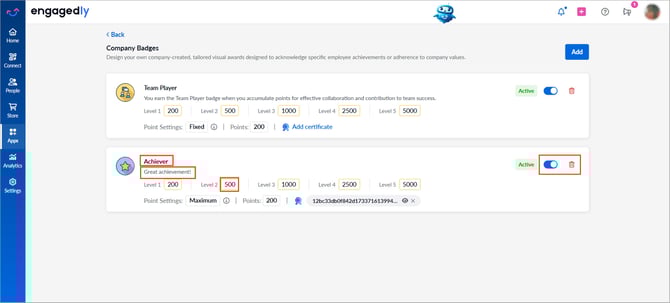
Click on any of the following fields to update the badge:
-
- Badge name
- Description
- Level points
- Point settings
- Points
- Certificate (update or remove)
After making the necessary changes, click the Tick  icon to save.
On the right side of a badge, do one of the following actions:
-
- Click the Delete
 icon to remove it.
 - Switch the toggle to deactivate it and click Deactivate to confirm.
- After deactivating, switch the toggle to reactivate if required.
- Click the Delete