![Engagedly dark.png]](https://help.engagedly.com/hs-fs/hubfs/Engagedly%20dark.png?height=31&name=Engagedly%20dark.png)
Authors evaluate learners to assess their understanding of a course or learning path, provide feedback, and ensure they meet the learning objectives. Evaluation also encourages learners to actively engage with and master the learning material.
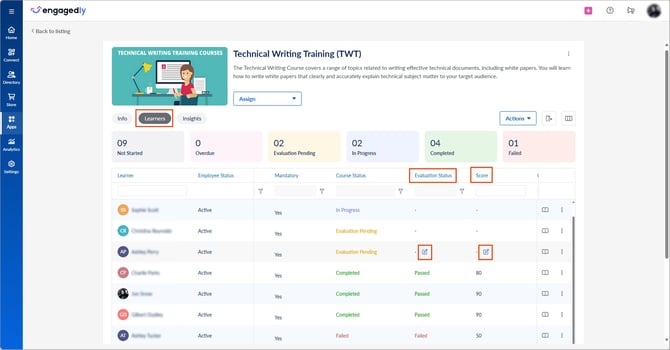
When “After manual evaluation” is enabled during course creation, the “Evaluation Status” and “Score" columns appear in the “Learners” tab. You can then mark learners as “Passed” or “Failed” and assign scores.
Navigate to Apps > Learning > Author.
- Go to the Authored by you tab and open an assigned learning.
- Go to the Learners tab and scroll right to view “Evaluation Pending” in the “Course Status” column.
- Hover over the “Evaluation Status” or “Score” column for a learner and click the Edit
 icon.
icon.
4. Select a status, enter a score, and click Confirm.
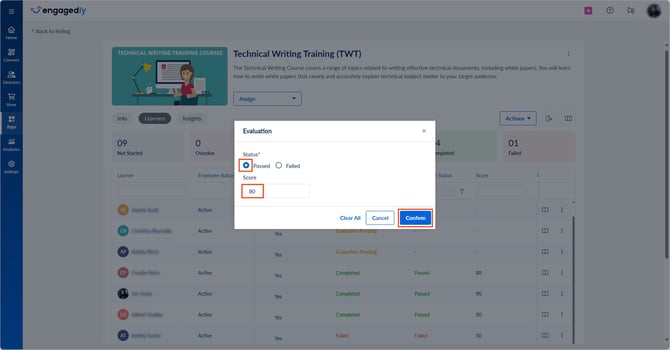
The “Evaluation Status” column shows whether a learner has passed or failed. The “Score” column displays the assigned score. You can edit both at any time by following the same steps.
📒Note: “When all units are completed” is enabled during course creation, the “Evaluation Status” and “Score” columns do not appear in the “Learners” tab.