![Engagedly dark.png]](https://help.engagedly.com/hs-fs/hubfs/Engagedly%20dark.png?height=31&name=Engagedly%20dark.png)
Admins and managers can export performance review reports for active, halted, and archived cycles. These reports provide insights into employee performance, progress, and development areas.
Navigate to Apps > Performance > Overview.
Admins: Open the drop-down and select My Org.
Managers: Open the drop-down and select a team.
- Locate the cycle you want to export reports.
- Click Manage on the right side of a cycle.
- Open the Analytics tab.
- Click the Filter
 icon at the top right.
 - Open the drop-down and select the required organizational units.
- Scroll down to a widget.
- Click the Overflow
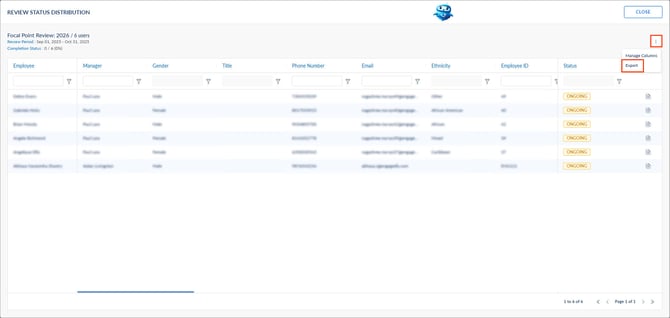
 Menu in the required widget and select View Reports.

8. Click the Overflow Menu at the top right and select Export.
The “Analytics” tab provides a graphical overview of performance data.
- Review status distribution: Shows the review completion status for employees.
- Rating distribution: Displays employee and manager ratings.
- Performance review: Summarizes ratings across all templates used in the cycle.
- 9-Box distribution: Plots ratings on a performance–potential grid.
- Goal rating distribution: Displays ratings and comments for goals.
- IDP Rating Distribution: Displays ratings for IDPs.
- Manager and HR Recommendations: Lists manager and HR recommendations.
- Training recommendations and development plans: Lists suggested courses and development plans.
- Post review feedback: Summarizes feedback after review completion.
📒Note: Some widgets appear only if they are enabled in the cycle settings.
Export the review form
Admins and managers can export employee review forms in PDF format.
Individual export: Open an employee’s review form and click the Download  icon at the top right.
Bulk export: Click ACTIONS and select Export Review PDF.
Employee actions
Employees can also export their review forms.
Navigate to Apps > Performance > My Reviews.
- Open the review form.
- Click the Download icon at the top right.
- Click EXPORT.
The PDF file opens, and you can save it.