![Engagedly dark.png]](https://help.engagedly.com/hs-fs/hubfs/Engagedly%20dark.png?height=31&name=Engagedly%20dark.png)
Employees can export their 360 feedback reports for completed reviews.
Report visibility
- If manual sharing is enabled, employees and managers can access reports only after admins share them.
- If automatic sharing is enabled, reports become available after responses are submitted, based on the sharing date configured by admins.
Navigate to Apps > 360 Feedback > My 360 Feedback.
- Under “Completed Reviews”, locate the required cycle.
- Hover over Your Report and click Show report to open the review form.
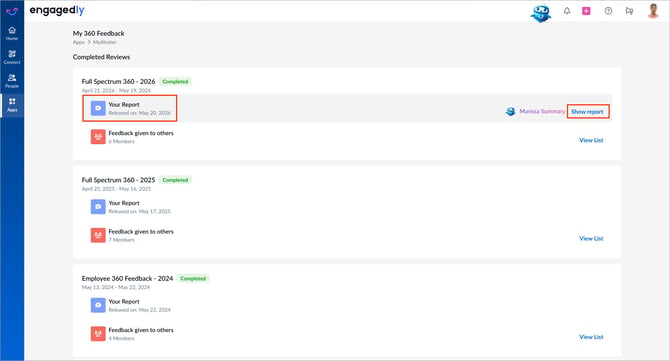
3. On the review form, click Export as PDF at the top right.
📒Note: The “Export as PDF” option appears only after responses are submitted.
You can export reports only for completed reviews that are shared with you.
ℹ️Additional information:
- If anonymity is enabled for the review cycle, respondent names and ratings are hidden in the exported report.
- If comments are hidden in the cycle configuration, comments do not appear in the exported report.
- The exported report reflects the latest available feedback at the time of export.
- If importance rating is enabled in the cycle configuration, the exported PDF report shows what percentage of raters marked each competency, behavior, or category as “Important.” For more information, refer to Understand importance rating in 360 feedback.