![Engagedly dark.png]](https://help.engagedly.com/hs-fs/hubfs/Engagedly%20dark.png?height=31&name=Engagedly%20dark.png)
After creating a 360 feedback cycle, admins and individuals with “Manage multirater review cycles” permission can manage it to update configurations, control visibility, or archive completed cycles. Any changes you make take effect immediately.
Manage a cycle to:
- Update cycle configurations before reviews begin.
- Control who can view and manage each cycle.
- Archive or unarchive cycles based on review progress or completion status.
💡Tip: Update the cycle configurations before adding employees.
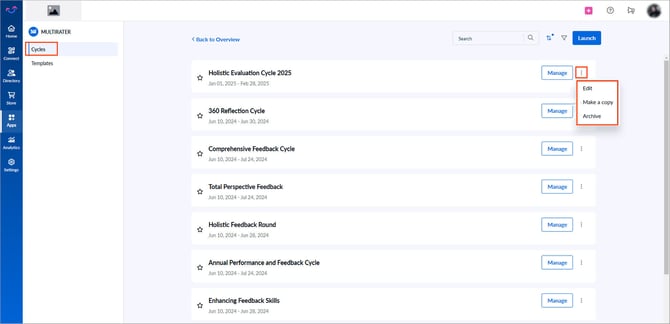
Navigate to Apps > 360 Feedback > Cycles.
Option 1: From the cycles page
- Click the Overflow
 Menu on the right side of a cycle and select the following options.
- Edit: Modify the cycle’s workflow configuration.
⚠️Warning: Editing the cycle’s crucial configuration after adding reviewees may impact the ongoing cycle.
- Make a copy: Create an editable copy and save it. The original cycle remains unchanged.
- Archive: Hide inactive or completed review cycles.
Option 2: Within the cycle settings
- Click the Overflow
 Menu on the right side of a cycle.
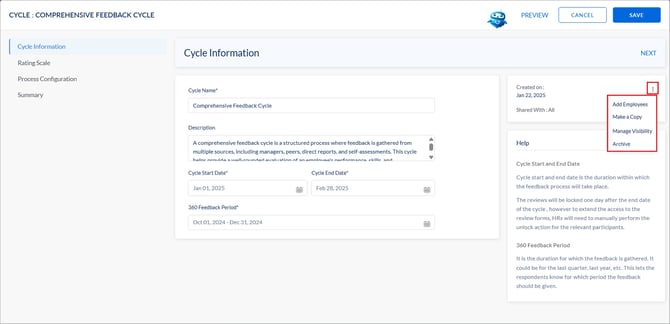
 - Select Edit to modify the cycle’s workflow configuration.
- Click the Overflow Menu at the top right and select the following options.
- Add employees: Add reviewees to the cycle. Learn more in Add reviewees to a 360 feedback cycle.
- Make a copy: Create an editable copy and save it. The original cycle remains unchanged.
- Manage visibility: Share the cycle with other admins and employees with manage permissions. They can view and edit the cycle settings.
- Archive: Hide inactive or completed review cycles.
📒Note: After you archive a cycle, no further actions are allowed from the "Manage" page, and the settings are not editable.
Unarchive a cycle
You can restore an archived cycle when required.
Option 1: From the cycles page
- Click the Filter
 icon at the top right.
 - Open the drop-down, select the Archived status, and click Apply.
- Click the Overflow Menu on the right side of a cycle and select Unarchive.
- Click UNARCHIVE again to confirm.
Option 2: Within the cycle settings
- Click the Overflow
 Menu on the right side of a cycle.
 - Select Edit to modify the cycle’s workflow configuration.
- Click the Overflow Menu at the top right and select Unarchive.
- Click UNARCHIVE again to confirm.