![Engagedly dark.png]](https://help.engagedly.com/hs-fs/hubfs/Engagedly%20dark.png?height=31&name=Engagedly%20dark.png)
After creating a template or adding one from the “Engagedly Library”, admins can manage it to ensure it remains accurate, relevant, and aligned with organizational requirements. They can edit, publish, share, or assign templates as required.
Manage a 360 feedback template when you need to:
- Edit the review structure or questions before assigning it to a new cycle.
- Update rating scales, competencies, or sections based on process changes.
- Duplicate an existing template to create a version for a specific department or role.
- Archive outdated templates to prevent accidental use.
💡Tip: Avoid editing a template after assigning it to employees to prevent inconsistencies in the feedback process.
⚠️Warnings:
- Deleting sections or subsections from the template impacts ongoing reviews.
- You cannot restore the deleted template.
Option 1: From the templates page
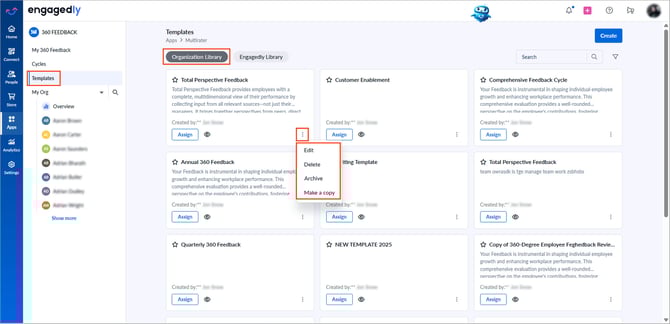
Navigate to Apps > 360 Feedback > Templates.
- In the “Organization Library” tab, click the Overflow
 Menu on a template and select an action:
- Edit: Update the title, description, notes, sections, subsections, questions, or any template settings.
- Delete: Remove the template.
- Archive: Hide a template that is not actively in use.
- Make a copy: Create an editable copy and save it in the “Organization Library”. The original template remains unchanged.
Option 2: From inside the template
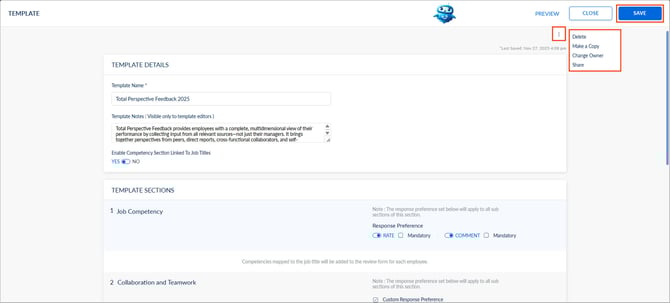
- In the “Organization Library” tab, click the template name.
- Click the Overflow
 Menu at the top right and select an action:
- Delete: Remove the template.
- Make a Copy: Create an editable copy of the template and save it in “Organization Library”. The original template remains unchanged.
- Change Owner: Transfer ownership of the template to another admin.
- Share: Share the template with another admin or with employees who have manage permissions in the organization.
3. Click SAVE after making the necessary changes.
📒Notes:
- If you change the owner, you lose edit access to the template. However, you can change the owner again to regain access.
- If you share a template, you and the employees you share it with can manage it.
Unarchive a template
You can restore an archived template when required.
- Click the Filter
 icon at the top right.
 - Open the drop-down list, select the Archived status, and click Apply.
- Click the Overflow Menu on a template and select Unarchive.
- Click UNARCHIVE to confirm.