![Engagedly dark.png]](https://help.engagedly.com/hs-fs/hubfs/Engagedly%20dark.png?height=31&name=Engagedly%20dark.png)
After creating a survey, authors can manage it as required.
Navigate to Apps > Surveys.
- Scroll to All Surveys.
- Open the survey you want to manage.
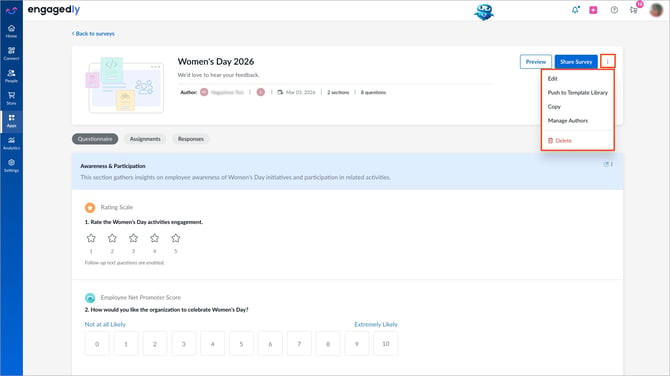
- Click the Overflow
 Menu at the top right and select a required action:
- Edit: Modify the survey name, description, authors, or other settings.
- Push to Template Library: Add the survey to the organization’s template library, making it accessible to other admins and survey managers.
- Manage Authors: Assign the survey to other admins and survey managers as authors or co-authors.
- Copy: Duplicate the survey and edit it as required.
- Delete: Permanently remove the survey.
⚠️Warning: Deleting a survey may impact associated workflows. It also deletes all assignments and responses, which you cannot recover.
ℹ️Additional information:
If respondents have already submitted responses to an assignment, and if you edit the assignment, their responses are not available for the edited questions. You must remove those respondents and add them again, making the updated assignment available to them.
After editing the survey, you can share it with respondents both inside and outside the organization. For more information, refer to Share a survey.