![Engagedly dark.png]](https://help.engagedly.com/hs-fs/hubfs/Engagedly%20dark.png?height=31&name=Engagedly%20dark.png)
Admins (and managers with permissions) can manage, update, and monitor review progress for individuals or groups (such as departments, business units, or locations) within an active performance cycle, ensuring timelines are met, and employee feedback remains accurate, complete, and organized.
Use these actions to update, notify, or modify review settings for individual or multiple employees within an active cycle.
Navigate to Apps > Performance > Cycles.
- Go to the tab that lists your cycles: Focal Review, Hire Based Review, or Anniversary Based Review.
- Click Manage next to a cycle.
Option 1: Bulk actions
Use bulk actions to manage reviews for multiple employees at once, making updates easy, instant, and consistent across teams. This helps streamline administration, reduce manual effort, and keep the review process moving without delays.
3. Click ACTIONS.
4. Select the desired option and follow the prompts.
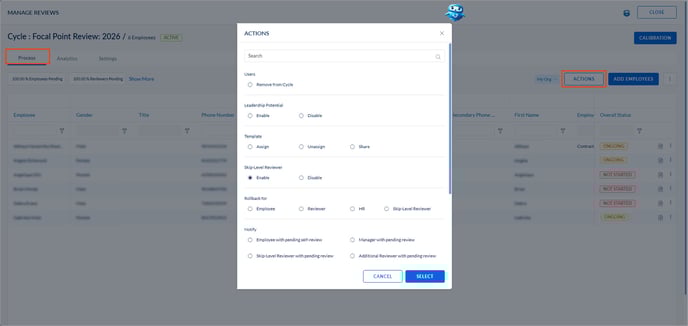
The following actions are available:
- Remove from Cycle: Exclude employees who leave the organization, switch to a non-reviewable role, or have no need to participate in the review cycle.
- Leadership Potential: Enable or disable leadership potential assessment for roles that only require leadership evaluation during the cycle.
- Template: Assign, unassign, or share the right review template to ensure employees receive the correct review form, especially if templates change mid-cycle.
- Skip-Level Reviewer: Enable or disable skip-level reviews to include higher-level managers for additional perspective. Helps when senior leaders provide additional context or calibration insights.
- Rollback for: Reopen reviews for selected roles (employee, reviewer, admin, or skip-level reviewer) when edits or corrections are required. Helps when employees or reviewers make errors, or new goals or IDPs are added later.
- Notify: Send reminders to employees or reviewers when deadlines are approaching to keep reviews on track.
- Allow Employees to View Manager's Review: Allow or restrict visibility so employees can view their manager’s feedback at the right stage. Helps maintain process integrity by sharing feedback only after calibration.
- Review Lock Status: Lock or unlock reviews so you can freeze submissions or reopen them for further edits.
- Delegate Reviews: Reassign review responsibilities when the original reviewer is unavailable or transitioning into a new role mid-cycle.
- Export Review PDF: Download review documents for all or selected employees when HR needs offline copies for audits, sharing, performance discussions, or employee files.
Option 2: Manage individual review actions
Use individual actions to manage reviews for a specific employee.
3. Click the Overflow  Menu on the right side of the employee’s name.
4. Select the desired option and follow the prompts.
Additional individual actions
- Nudge Employee or Reviewer: Send a reminder to complete pending reviews or actions before the deadline and keep the cycle on track.
- Manage additional reviewers: Add or remove peers or cross-functional reviewers to ensure the employee receives well-rounded, relevant feedback on performance.
📒Notes:
- Each action opens a guided, step-by-step prompt to help you complete the next steps.
- You cannot assign more than one template to an employee.
- During cycle configuration, when automatic template sharing is enabled, templates become visible to employees as soon as they are assigned.
- Unassigning a template deletes the review progress of employees and reviewers.
- If changes are made to the template after sharing it with employees, you must unassign and reassign the template for the updates to appear in the review form.