![Engagedly dark.png]](https://help.engagedly.com/hs-fs/hubfs/Engagedly%20dark.png?height=31&name=Engagedly%20dark.png)
Admins and managers can view and manage an instant feedback survey they have already sent.
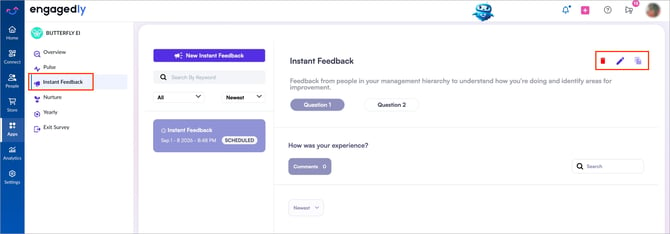
Navigate to Apps > Butterfly EI > Instant Feedback.
In the left navigation, view the list of previously sent surveys.
- (Optional) Use the search bar or filter to locate a specific survey you want to manage.
- Click a survey card to open its report.
The report displays responses by question, audience, date range, and completion metrics. - Perform the following actions as required:
-
- Click the Delete
 icon to permanently remove the survey.
Click Delete to confirm. - Click the Pen
 icon to update the survey.
 - Click the File
 icon to duplicate the survey for reuse or modification.
Edit the survey as required.
- Click the Delete
-
- Click the Refresh
 icon to resend the survey to employees who have not responded. Click Resend to confirm.
 - Click the Download
 icon to download the survey results.
- Click the Refresh
📒Notes:
- You can edit a scheduled instant feedback request until it triggers or goes live.
- The download option appears after at least one response is submitted.
- The resend option appears after the instant feedback is sent.