![Engagedly dark.png]](https://help.engagedly.com/hs-fs/hubfs/Engagedly%20dark.png?height=31&name=Engagedly%20dark.png)
After creating a pulse, admins and survey managers can manage it as required, regardless of who created it.
Navigate to Apps > Butterfly EI > Pulse.
- At the top right, use the available options to manage the pulse:
-
- Click the Settings
 icon to edit the pulse. After making your changes, click Update to save them.
 - Click the Delete
 icon to delete the pulse, then click Delete to confirm.
 - Use the toggle to pause or activate the pulse.
- Click the Settings
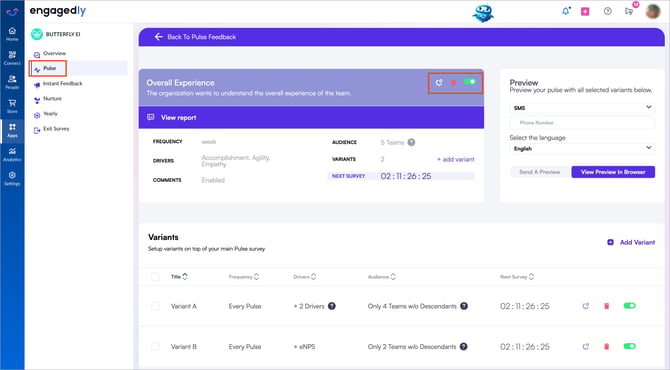
2. Scroll down to the Variant section and click + Add Variant to include variants to the pulse. For more information, refer to Create a pulse variant.
⚠️Warning: You cannot access the results after deleting a pulse.
📒Notes:
- Turning off a pulse does not affect surveys that are already sent. They remain open and continue as normal.
- Turning off a pulse also prevents future scheduled surveys from being sent.