![Engagedly dark.png]](https://help.engagedly.com/hs-fs/hubfs/Engagedly%20dark.png?height=31&name=Engagedly%20dark.png)
Set conversion rates for each location and currency to map awarded points to real-world value. This helps streamline budgeting and redemption.
Navigate to Apps > Rewards > Settings.
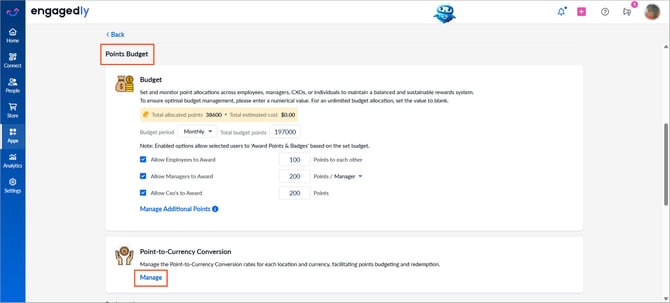
- Scroll down to Points Budget.
- Under “Point-to-Currency Conversion”, click Manage.
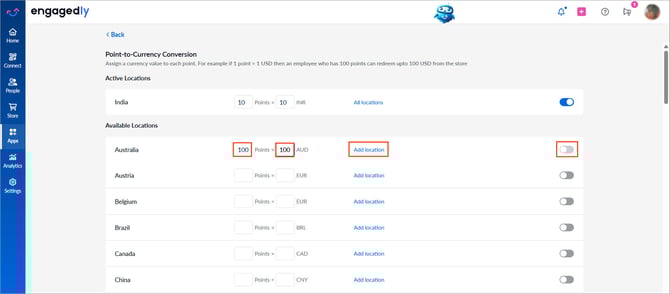
3. Find a location you want to add.
4. Enter the points value and the corresponding currency for that location.
5. Click Add location, select the required locations available in the organization, and click Add.
6. Use the toggle to enable a location for currency conversion.
Manage conversion settings
To update points or currency values: Click the fields and edit the values.
To manage locations:
- Click Add location, deselect locations to remove them, and click Add.
- Switch the toggle to disable a location.
All changes are auto-saved.
Notes:
-
Disabling a location removes it from the available redemption options for employees in that region.
- Locations are configured for redemption. Admins can still manage (enable or disable) locations independently in both Tango and Switchfly. Disabling a location removes it from the available redemption options for employees in that region.