![Engagedly dark.png]](https://help.engagedly.com/hs-fs/hubfs/Engagedly%20dark.png?height=31&name=Engagedly%20dark.png)
Admins and individuals with “Manage multirater reviews” permission can manage 360 feedback, view submission status, manage report sharing from the dashboard of a 360 feedback cycle.
In this article, you can learn how to:
- Manage 360 feedback (lock and unlock)
- View submission status
- Manage report sharing (share and unshare)
Common navigation path
Navigate to Apps > 360 Feedback > Cycles.
- Locate the cycle you want to manage.
- Click Manage on the right side of a cycle.
- Open the Dashboard tab.
Manage 360 feedback
Lock 360 feedback
After the due date of a 360 feedback cycle, the feedback locks automatically. You can also lock the completed feedback manually to prevent further feedback submission. For more information, refer to Lock or unlock 360 feedback.
Option 1: Lock feedback for multiple participants
Perform bulk actions for all participants at once to lock the feedback.
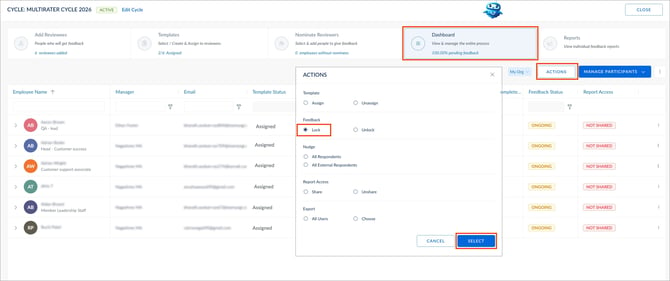
- Click ACTIONS on the right.
- Under the “Feedback” section, select Lock, then click SELECT.
3. Select all participants or specific participants.
4. Click LOCK on the right.
5. Click LOCK again to confirm.
📒Note: Participants cannot edit the locked feedback.
Option 2: Lock feedback for an individual participant
You can also lock the feedback for individual participants when required.
- Click the Overflow
 Menu on the right for a participant.
 - Select Lock Feedback.
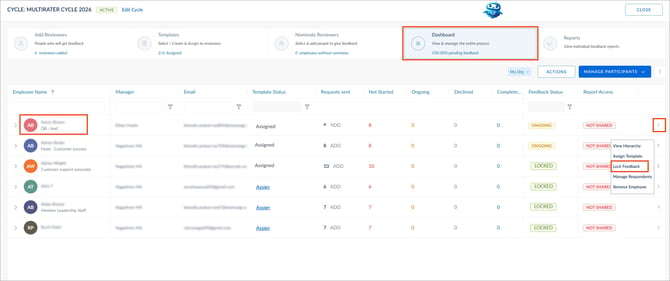
3. Click LOCK to confirm.
Unlock 360 feedback
Unlock the feedback to allow feedback submission again when required.
⚠️Warning: Unlocking feedback allows participants and respondents to make changes to their feedback.
Option 1: Unlock feedback for multiple participants
- Click ACTIONS on the right.
- Under the “Feedback” section, select Unlock, then click SELECT.
- Select all participants or specific participants.
- Click UNLOCK on the right.
- Click UNLOCK again to confirm.
Option 2: Unlock feedback for an individual participant
- Click the Overflow Menu on the right for a participant.
- Select Unlock Feedback.
- Click UNLOCK to confirm.
View submission status
Track the status of feedback responses for a cycle.
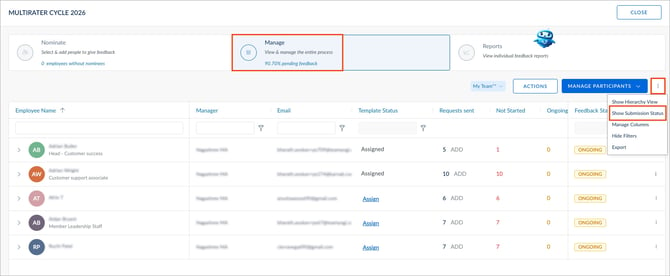
- Click the Overflow Menu on the right.
- Select Show Submission Status.
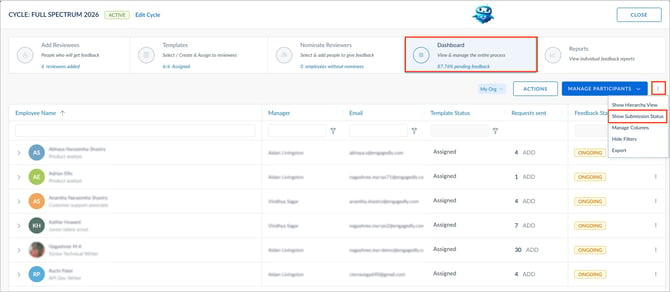
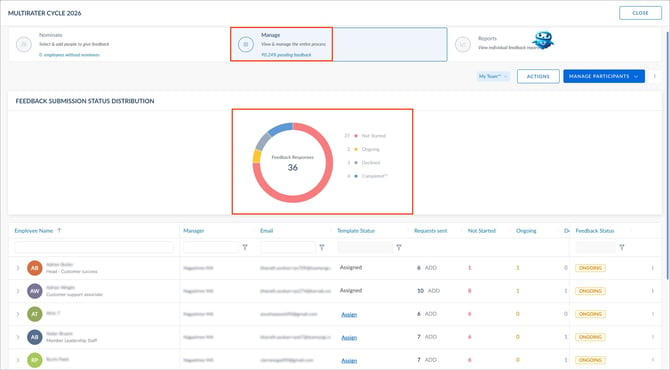
The pie chart displays the response statuses of all respondents.
3. Click a status to view respondents and send nudges. For more information, refer to Nudge reviewers with pending 360 feedback.
Manage report sharing
If manual sharing is enabled, employees and managers can access reports only after admins share them. If automatic sharing is enabled, reports become available after responses are submitted, based on the date admins configure.
Share report
Option 1: Share report from bulk actions
- Click ACTIONS on the right.
- Under the “Report Access” section, select Share, then click SELECT.
- Select all participants or specific participants.
- Click SHARE on the right.
- Click SHARE again to confirm.
Option 2: Share report for individual participant
- Click the Overflow Menu on the right for a participant.
- Select Share Report.
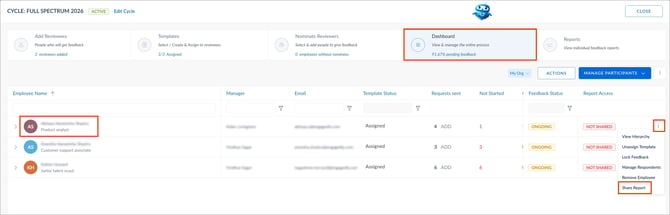
3. Click PROCEED to confirm.
Unshare report
Unshare reports to remove participants' access to the shared reports.
Option 1: Unshare report from bulk actions
- Click ACTIONS on the right.
- Under the “Report Access” section, select Unshare, then click SELECT.
- Select all participants or specific participants.
- Click UNSHARE on the right.
- Click UNSHARE again to confirm.
Option 2: Share report for individual participant
After unsharing the report, the employee and manager cannot access the report.
- Click the Overflow Menu on the right for a participant.
- Select Unshare Report.
- Click PROCEED to confirm.
Manage feedback as a manager
By default, managers can lock and unlock 360 feedback for their direct resorts. For more information, refer to Lock or unlock 360 feedback.
View submission status as a manager
Track the feedback submission status of your direct reports for a cycle.
Navigate to Apps > 360 Feedback > Overview.
- Open the drop-down and select a team.
- In the “Ongoing Reviews” section, locate a cycle you want to add reviewees.
- Click Manage on the right side of a cycle.
- Click the Overflow Menu on the right.
- Select Show Submission Status.
The pie chart displays the response statuses of all respondents.
6. Click a status to view respondents and send nudges. For more information, refer to Nudge reviewers with pending 360 feedback.