![Engagedly dark.png]](https://help.engagedly.com/hs-fs/hubfs/Engagedly%20dark.png?height=31&name=Engagedly%20dark.png)
Authors can add respondents while sharing a survey. After the survey is shared, they can manage respondents by adding and removing them.
⚠️Warning: Adding respondents after sharing the survey may affect previously collected responses
📒Note: For the “Post the survey on social” and “Generate a public URL” assignment types, you cannot add respondents, but you can remove them.
Manage respondents
Navigate to Apps > Surveys.
- Scroll down to All Surveys.
- Open a survey where you want to manage assignments.
- Go to the Assignments tab.
- Click the Overflow
 Menu on an assignment.
 - Select Respondents.
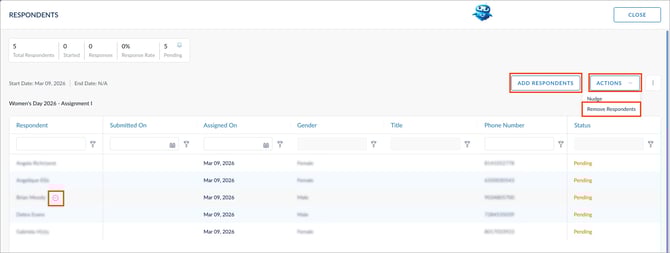
-
- Click ADD RESPONDENTS, select the employees, and click ASSIGN.
- Open the ACTIONS drop-down, select Remove Respondents, select specific employees or all, and click REMOVE.
- Hover over a respondent’s name, click the Minus
 icon, and click REMOVE to remove the individual respondent.
⚠️Warning: Removing respondents deletes their responses permanently. You cannot recover them.
Manage columns and export respondents
-
Click the Overflow
Menu at the top right and select the required option:
-
- Manage Columns: All active employee fields are available in “Manage Columns”. However, only the selected fields are visible in the grid. Configure the columns as required before exporting.
- Export: Export employee information. Only the fields selected in “Manage Columns” are included in the export.
After sharing the survey, you can nudge respondents who have not submitted their responses. For more information, refer to Nudge respondents in a survey.