![Engagedly dark.png]](https://help.engagedly.com/hs-fs/hubfs/Engagedly%20dark.png?height=31&name=Engagedly%20dark.png)
The learning dashboard helps learners view, track, and manage their learning activities. It gives quick access to assigned courses, progress details, and the learning library.
Learners can explore courses and learning paths, add them to a wishlist, and browse external courses from integrated applications.
📒Note: External learning applications are visible only if your organization is integrated with them.
Access the learning dashboard
Navigate to Apps > Learning.
- Go to My Learning from the left panel.
The dashboard opens with an overview of your learning status.
Action banner
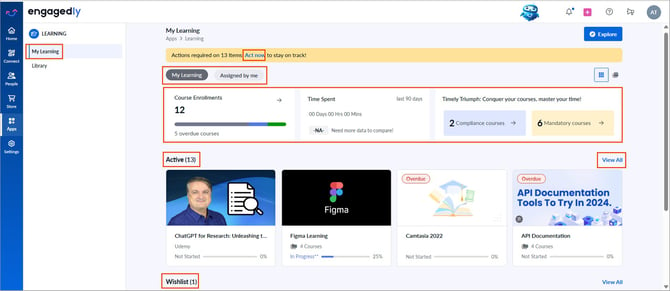
The action banner highlights the number of learning items that require your attention. Click Act now at the top to quickly review and complete pending items.
Learning tabs
- My Learning: Shows courses and learning paths assigned to you or that you enroll in.
- Assigned by me: Shows courses and learning paths you assign to others. This tab appears only if you have author permission.
Learning summary
The dashboard summary gives a snapshot of your learning status:
- Course Enrollments: Shows the total number of enrolled courses and indicates overdue courses.
- Time Spent: Displays the total time you spend on learning during the last 90 days.
- Compliance and Mandatory courses: Shows the count of compliance and mandatory courses assigned to you.
Select any section to view detailed information.
Active learning section
The “Active” section lists courses and learning paths that are in progress or not yet started. Each card shows:
- Course or learning path name
- Learning provider (if imported courses are available)
- Progress status and percentage
- Estimated time (if available)
Select a card to open and continue learning.
Click View All on the right to see active, completed, and wishlisted items.
Wishlist section
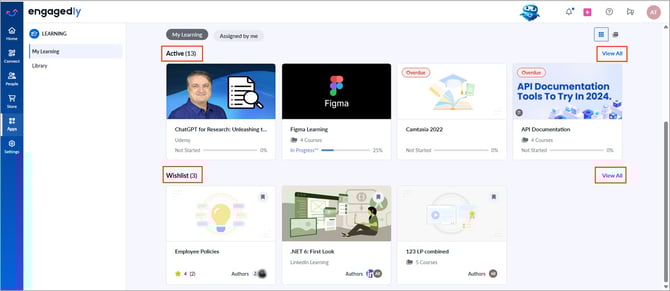
The “Wishlist” section appears when you save learning items you want to take in the future.
It allows you to:
- Bookmark courses and learning paths for later enrollment.
- Quickly access saved learning without searching the library again.
- Plan your learning journey based on interest and availability.
You can enroll in any learning directly from the wishlist at any time.
Click View All on the right to see active, completed, and wishlisted items.
Explore learning
You can explore courses and learning paths and add them to your wishlist.
- On the “My Learning” dashboard, click Explore to open the “Library”.
- Click Browse to view categories and integrated learning applications.
- Use filters such as type, author, skills, competency, tags, language, duration, rating, provider, level, and certification.
Click the Bookmark  icon at the top right of a course or learning path to add it to your wishlist.
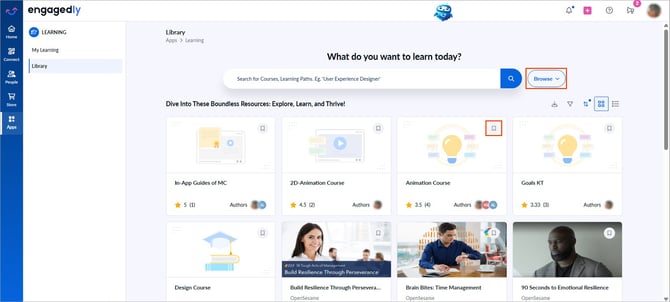
📒Note: You can add only courses from integrated applications.
Integrated learning applications
Engagedly integrates with platforms such as LinkedIn Learning, Udemy, and Engagedly Academy.
When you click Browse, you can view content grouped by:
- All Categories
- All Resources
- Integrated providers such as LinkedIn Learning, Udemy, and Engagedly Academy
Select a category or provider that redirects you to the provider platform or filtered content list.
📒Note: If employees enroll in courses before an application integrates with Engagedly, the system does not automatically display those enrollments in Engagedly.
Enroll in learning
From the Library, you can:
- View course and learning path details
- Enroll in available courses
- Start learning on Engagedly or the integrated learning platform
After enrollment, the course or learning path appears on the “My Learning” dashboard for easy tracking. Learn more in Self-enroll or unenroll from learning.