![Engagedly dark.png]](https://help.engagedly.com/hs-fs/hubfs/Engagedly%20dark.png?height=31&name=Engagedly%20dark.png)
After assigning a template to reviewees, admins must nominate respondents. Admins can also add external respondents if enabled during cycle configuration.
If admins allow:
- Managers can nominate respondents for their direct reports. Refer to the Manager's actions.
- Employees can nominate respondents for themselves. Refer to the My 360 feedback dashboard.
You can learn how to:
💡Tips:
- During cycle configuration, enable default nominations and external reviewers for a smoother nomination process.
- Nominate respondents before the nomination end date. The system does not allow nominations later.
⚠️Warnings:
- Deleting any column in the template causes the upload failure.
- Removing reviewees or reviewers deletes their feedback progress.
Navigate to Apps > 360 Feedback > Cycles.
- Click Manage for the cycle where you want to nominate respondents.
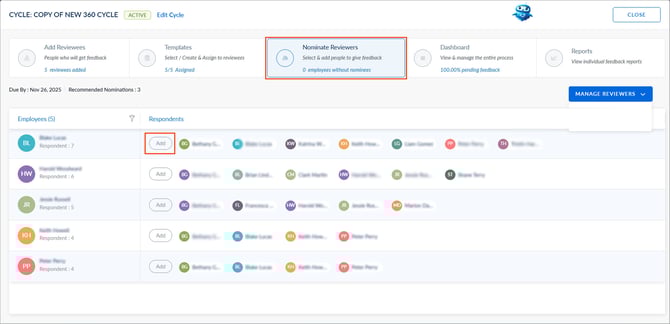
- Go to the Nominate Reviewers tab and perform one of the following actions:
Add respondent
When default nominations are enabled during cycle configuration, the system automatically adds nominations for employees, including their managers, peers, and direct reports (if applicable).
Click Add to include additional reviewers, search for and select respondents, and then click SAVE.
Add an external respondent
Include external respondents to allow for a broader range of feedback and insights. When "Allow external respondent nominations" is enabled during cycle configuration, you can add external respondents as nominators, who appear with the letter E in the “Nominate Reviewers” tab.
- Click Add and then click ADD EXTERNAL RESPONDENT.
- Enter the name and email.
By default, the “Send an email request to the respondent” option is enabled.
3. (Optional) Edit the subject if required and enter the message.
4. Edit the email in the “Bcc” field if required, click SAVE, and then click SAVE to confirm.
📒Note: By default, the logged-in user’s email appears in the “Bcc” field.
Remove respondent
Remove default or manually added reviewers from the cycle.
Hover over the reviewer's name and click the Cancel  icon.
icon.
Import reviewer
Import reviewers in bulk using the template.
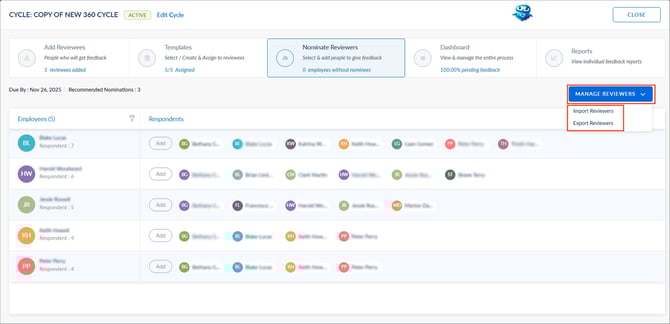
Click MANAGE REVIEWERS on the right, select Import Reviewers, and follow the prompts.
Before downloading the template, enable “Populate respondents based on relationship” to automatically assign reviewers based on predefined relationships. The system prompts you to select a relationship if you enable this.
Export reviewer
Export reviewers’ names and their email addresses.
Remove reviewee
After adding reviewees, manually remove them from the cycle. Hover over the reviewee on the left pane, click Remove, and click DELETE to confirm.
📒Note: Remove a reviewee only when they should not participate in the cycle, in case of incorrect assignment, organizational changes, or employee exit.
Manager actions
Managers can nominate respondents for their direct reports if permitted.
📒Note: Only admins can remove reviewees and import or export reviewers.
Navigate to Apps > 360 Feedback > Overview.
- Click Manage for the cycle where you want to nominate respondents.
- Go to the Nominate tab.
- Follow the same steps to add respondents, add external respondents, or remove respondents.
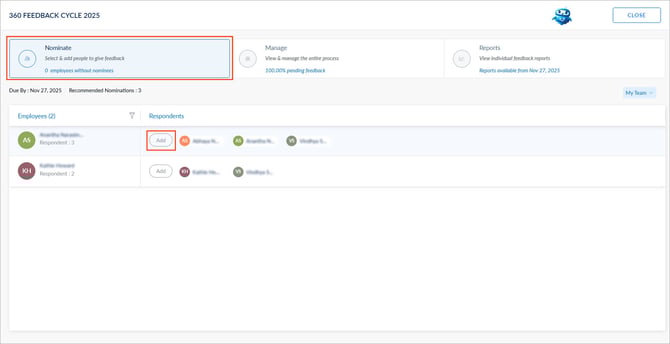
📒Note: This screenshot reflects the manager's view.