![Engagedly dark.png]](https://help.engagedly.com/hs-fs/hubfs/Engagedly%20dark.png?height=31&name=Engagedly%20dark.png)
After adding sections and courses, authors must publish the learning path. Publishing enables you to push the learning path to the library and control its visibility so it reaches the intended audience.
📒Note: You can publish the learning path only if you authored it.
After adding sections and courses, you remain on the learning path edit page, where you can publish the learning path.
You can also publish by following these steps:
Navigate to Apps > Learning > Author.
- Go to the Authored by you tab and open an unpublished course.
- Click Publish at the top right, and then again click Publish to confirm.
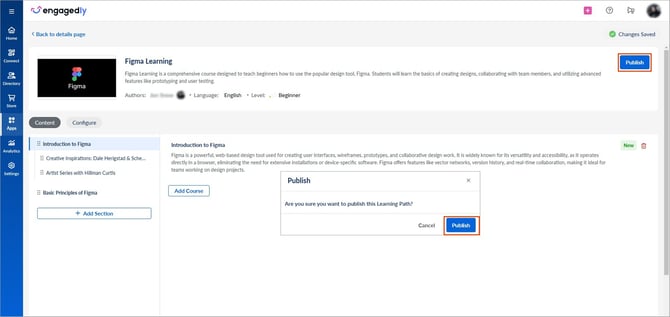
📒Note: You must publish the learning path before assigning it to learners.
Set course visibility
While publishing, choose how the learning path appears in the library:
- Everyone: Make the learning path visible to all employees.
- Specific Groups: Restrict visibility to selected groups.
- Private: Restrict visibility to admins and learning managers only.
3. Select a visibility option and click Save to push the learning path to the library.
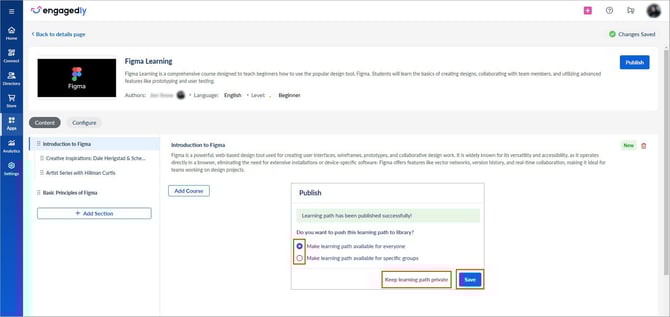
You can change the learning path visibility at any time.
To update: Click below the “Learning Path Visibility” in the “Info” tab and make the necessary changes as required.
📒Note: If you click “Available to all” but do not select any group, the course does not appear in the library by default.
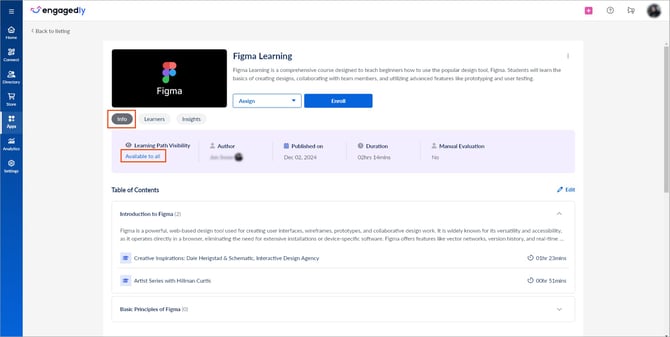
Learning path details after publishing
After publishing, the “Info”, “Learners”, and “Insights” tabs appear on the learning path details page.
At the top of the page, you can view the learning path name and description.
Info tab: Displays the learning path configuration and content details.
At the top, it shows visibility settings, authors and co-authors (if applicable), published date, total duration, evaluation status, and table of contents.
To make changes to sections or courses, click Edit on the right. Learn more in Add and manage sections and courses to a learning path.
At the bottom, it displays learning outcomes, skills, competencies, categories, tags, points, certification, and additional details.
Learners tab: View and manage learners enrolled in or assigned to the learning path.
Insights tab: View learning path analytics, including learning content statistics, learners’ time spent, progress, and completion details.
ℹ️Additional information:
- If the learning path’s visibility is set to all, learners can view all courses in the learning path, even if one of the courses is restricted.
- If a co-author does not have visibility to a course in a learning path, they can still view and edit the learning path, but they cannot preview or edit the restricted course.