![Engagedly dark.png]](https://help.engagedly.com/hs-fs/hubfs/Engagedly%20dark.png?height=31&name=Engagedly%20dark.png)
Admins configure badges and link them to activities to drive engagement.
Navigate to Settings > Rewards > Settings.
- In “Activity Badges”, use the toggle to enable the feature.
- Click Manage to configure badges and activities.
Perform any of the following actions:
- Add an activity badge
- Manage an activity badge
- View available activities
- Add an activity
- Enable activities and associated badges
- Manage an activity
Add an activity badge
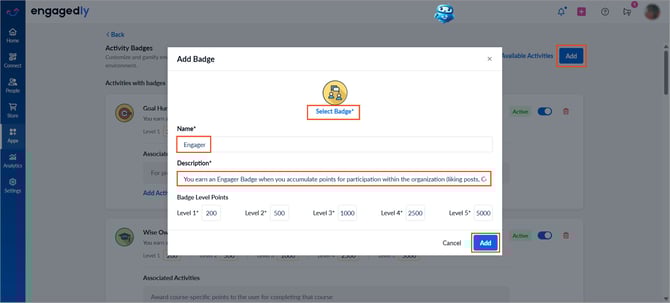
- Click ADD at the top right.
- Click Select Badge to choose an icon from the badges library or upload your own.
- Enter the badge name and description.
- Enter the required points for each badge level, and then click Add.
Manage an activity badge
Click on any of the following fields to update the badge:
- Badge name
- Description
- Level points
After making the necessary changes, click the Tick  icon to save.
On the right side of a badge, do one of the following actions:
- Click the Delete
 icon to remove it.
 - Switch the toggle to deactivate it.
- After deactivating, use the toggle to activate it again if required.
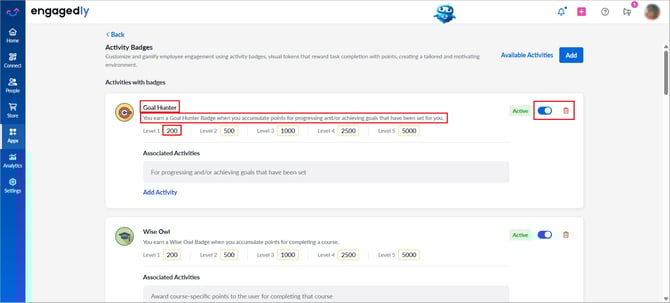
You can activate or deactivate the badges at any time.
Note: Employees cannot view deactivated badges.
Deactivating a badge removes all associated activities, which then appear in the “Available Activities” list, highlighted to indicate they were previously associated with a badge.
Deactivated badges appear at the bottom of the “Activity Badges” page in the “Inactive” status.
Scroll down and use the toggle to activate it again.
After activating the badge, including its associated activities, it moves to the top of the “Activity Badges” page in the “Active” status.
View available activities
Engagedly offers predefined activities that you can incorporate into your organization’s rewards program.
Click Available Activities at the top right.
Highlighted badges indicate that the activities were previously associated with a badge. You can change the badge or continue with the existing one for the activity.
Non-highlighted badges indicate that the activities are not associated with any badges. You can associate a badge with the activity or continue without a badge.
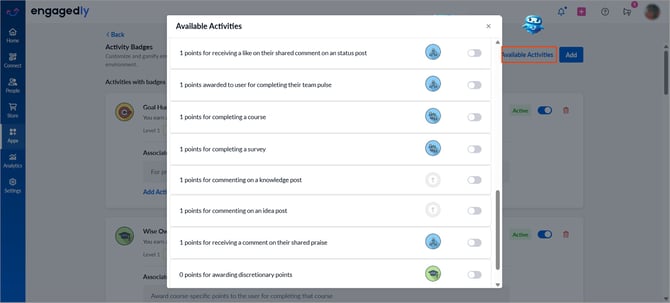
These activities are admin-defined global badges used to award points to employees based on the apps associated with each activity.
For example:
The activity “Award course-specific points to the user for completing that course” links to the Learning app. When you disable this activity, learners do not receive course completion points, even if points are configured for the course.
Add an activity
After creating a badge, you can associate activities to it or add activities to an existing badge.
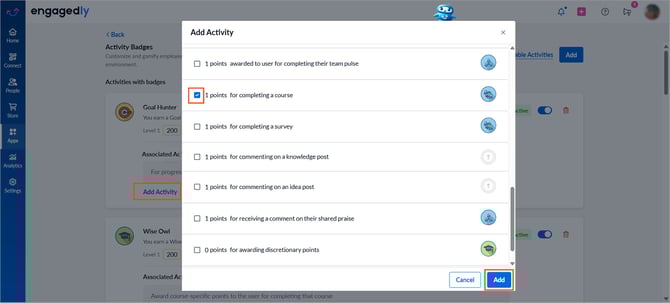
- Click Add Activity for a badge.
- Select an activity (associated with or without a badge).
- Click Add.
Enable activities and associate badges
After adding an activity badge, enable activities for it.
- Click Available Activities at the top right.
- Switch the toggle to enable an activity associated with or without a badge.
- Click Continue to associate a badge with the activity or Select badge as required.
ℹ️Additional information:
When enabling:
- If you select an activity previously associated with a badge, change the badge or continue with the same badge.
- If you select an activity not associated with a badge, associate a badge or continue without a badge.
- If you select an activity associated with a deactivated badge, select a different badge or reactivate the previous badge.
📒Note: After an activity is associated with a badge, it does not appear in the “Available Activities” list.
Manage an activity
- Hover over the activity.
- On the right, do one of the following actions:
-
- Click Move and select the desired badge to move an activity.
- Click Remove to disable it.
After disabling, the activity reappears in the “Available Activities” list.
📒Note: You can also disable an activity that is not currently associated with any badge.