![Engagedly dark.png]](https://help.engagedly.com/hs-fs/hubfs/Engagedly%20dark.png?height=31&name=Engagedly%20dark.png)
Table of contents
1. Introduction
Team Pulse is a powerful listening tool that uses targeted questions to gather valuable insights from employees. Learn more in Introduction to Team Pulse.
Only admins can set up and launch team pulse. To set up team pulse, configure settings and questions. Once team pulse is launched, employees begin receiving weekly questions based on the configured frequency.
2. Configure settings
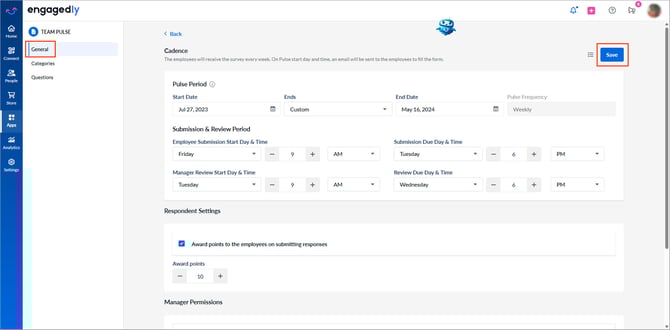
Navigate to Apps > Team Pulse > Settings > General.
Period
- Pulse period: Set the start, end date, and recurrence pattern. The end date stops sending pulse questions to employees. By default, team pulse never ends.
- Submission and review period: Define the employee submission period and the manager review period by setting the start day, due day, and time.
📒Note: The system sends notifications based on the organization’s preferred time zone. If an employee sets a personal time zone, the system uses that time zone instead.
Respondent settings
Enable Award points to the employees on submitting responses.
📒Note: You can award points if you have an active subscription of Engagedly’s Rewards app. Learn more in Introduction to Rewards.
Manager permissions
Configure whether managers, department admins, or business unit admins can contribute questions to team pulse.
- Select the applicable team scope: Direct Reports, Secondary Team, Entire Team, or all.
- Enable Allow Department/BU admins to add questions for their Departments/BU.
Weekly question limit
- Set the maximum number of questions to send in each weekly pulse. To modify the limit for different question pools, refer to the Configure the weekly question limit section.
- Click Save at the top right to apply your settings.
💡Tip: To minimize employee time commitment, limit the total number of weekly questions to five, including both admin and manager questions.
For information about question randomization, refer to How does question randomization work in Team Pulse?.
3. Configure questions
Navigate to Apps > Team Pulse > Settings > Questions.
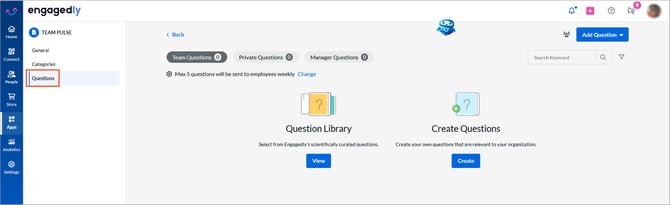
Add questions: Team pulse includes two question pools.
- Team questions: They are used for general team insights. Employee responses are visible to both the admin and the manager.
- Private questions: They are used for confidential or sensitive insights. Employee responses are visible only to the admin.
The system sends questions from these pools based on the maximum weekly question limit defined in settings.
If managers add questions, they appear under the “Manager Questions” tab.
You can:
- Add questions from Engagedly’s question library, or
- Create custom questions based on your organization’s needs.
Learn more in Add and manage questions in team pulse.
📒Note: Questions added to team pulse are automatically saved to the “Org Library” for future use.
4. Question randomization
Admins can configure the maximum number of questions sent to employees each week. When the number of available questions exceeds this limit, the system automatically applies question randomization.
Each week, the system randomly selects questions from the available pool and sends them to employees until the configured weekly limit is reached. This ensures employees receive a varied set of questions over time.
If there are specific questions that must appear in every pulse, admins can pin those questions. Pinned questions are not randomized and are always included.
Configure the weekly question limit
Navigate to Apps > Team Pulse > Settings > Questions.
-
Open one of the following tabs:
-
Team Questions
-
Private Questions
-
Manager Questions
-
-
At the top of the page, click Change in the “Max 5 questions will be sent to employees weekly” field.
-
Enter the required value.
-
Click Save.
For more details, refer to How does question randomization work in Team Pulse?.